

Set up email
Question about the manual? Ask Claude · Ask ChatGPT
SMARTBRIX sends emails to tenants, owners and prospects: invoices, exposés, portal invitations, appointment proposals. Replies end up in the history of the record the email belongs to. For this the system needs two connections to your email provider: an Outgoing Mail Server for sending and an Incoming Mail Server for fetching. Aliases define what happens to emails sent to certain addresses.
- Outgoing Mail Server (SMTP): your provider’s server that SMARTBRIX sends through.
- Incoming Mail Server (IMAP or POP): the mailbox SMARTBRIX fetches incoming emails from.
- Alias Domain: the domain of your email addresses, for example “musterverwaltung.example”.
- Alias: an address under this domain that has a job, for example “vermietung@” for new inquiries.
- Catchall Alias: the address that replies to SMARTBRIX emails go to. SMARTBRIX assigns them to the right record.
- Bounce Alias: the address for bounces when an email could not be delivered.
- Default From Alias: the sender for emails that have no suitable sender of their own, for example “notifications@”.
Turn on your own mail servers
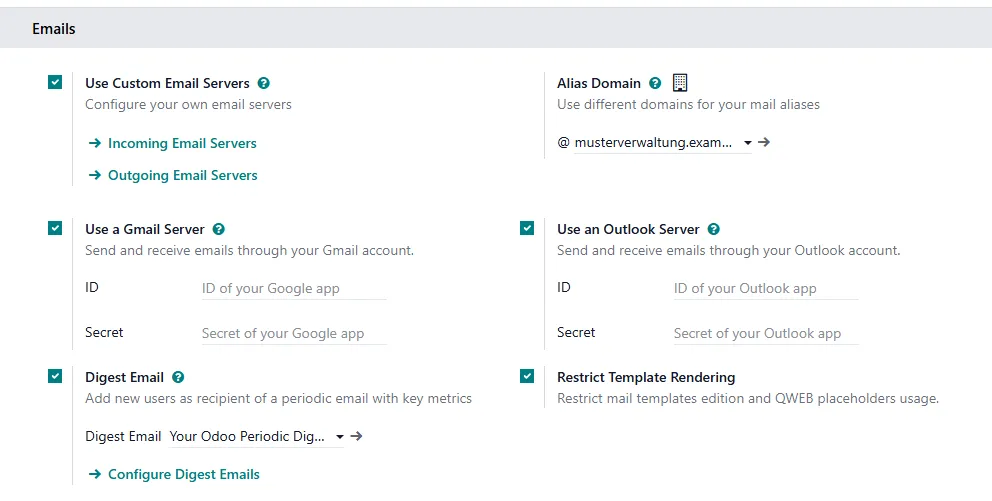
Section titled “Turn on your own mail servers”- Open Settings and go to the Emails block.
- Tick Use Custom Email Servers and save.
- The links Incoming Email Servers and Outgoing Email Servers appear below.
- On the right, under Alias Domain, select your domain or create it.
Outgoing mail server
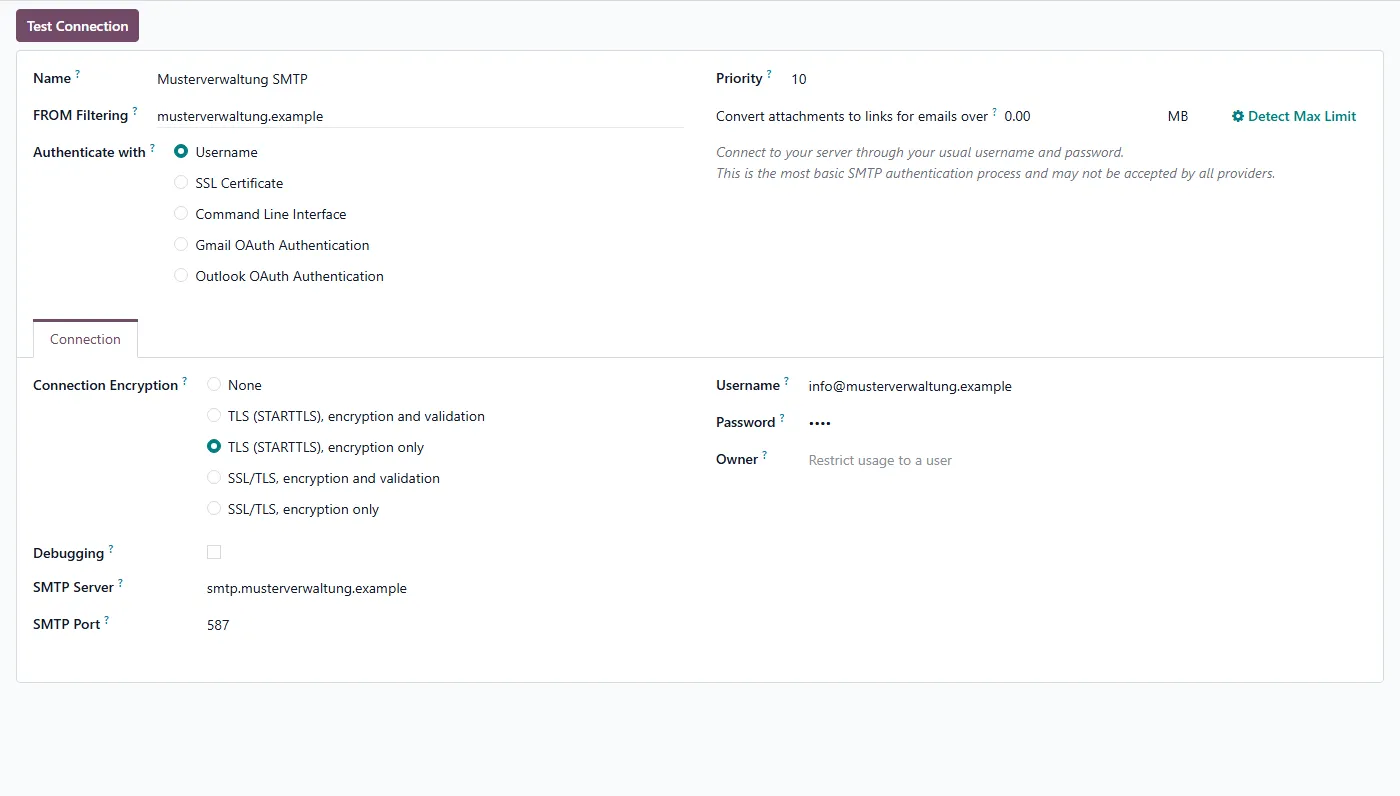
Section titled “Outgoing mail server”- In the Emails block, click Outgoing Email Servers and then New.
- Enter a label under Name, for example “Musterverwaltung SMTP”.
- Enter your domain under FROM Filtering, for example “musterverwaltung.example”. SMARTBRIX then uses this server for every email whose sender ends in this domain.
- Under Authenticate with, choose the login method. For most providers it is Username. Microsoft 365 and Google have their own methods, see below.
- On the Connection tab, fill in your provider’s details:
- SMTP Server: for example “smtp.musterverwaltung.example”.
- SMTP Port: usually “587” with TLS (STARTTLS) or “465” with SSL/TLS.
- Connection Encryption: as your provider specifies. The variants with encryption and validation also check the server’s certificate.
- Username and Password: the login details of the mailbox.
- Click Test Connection. Save only once the test succeeds.
You can have several outgoing mail servers, for example one per domain. If several are equally suitable, the Priority decides: the lower number goes first.
Incoming mail server
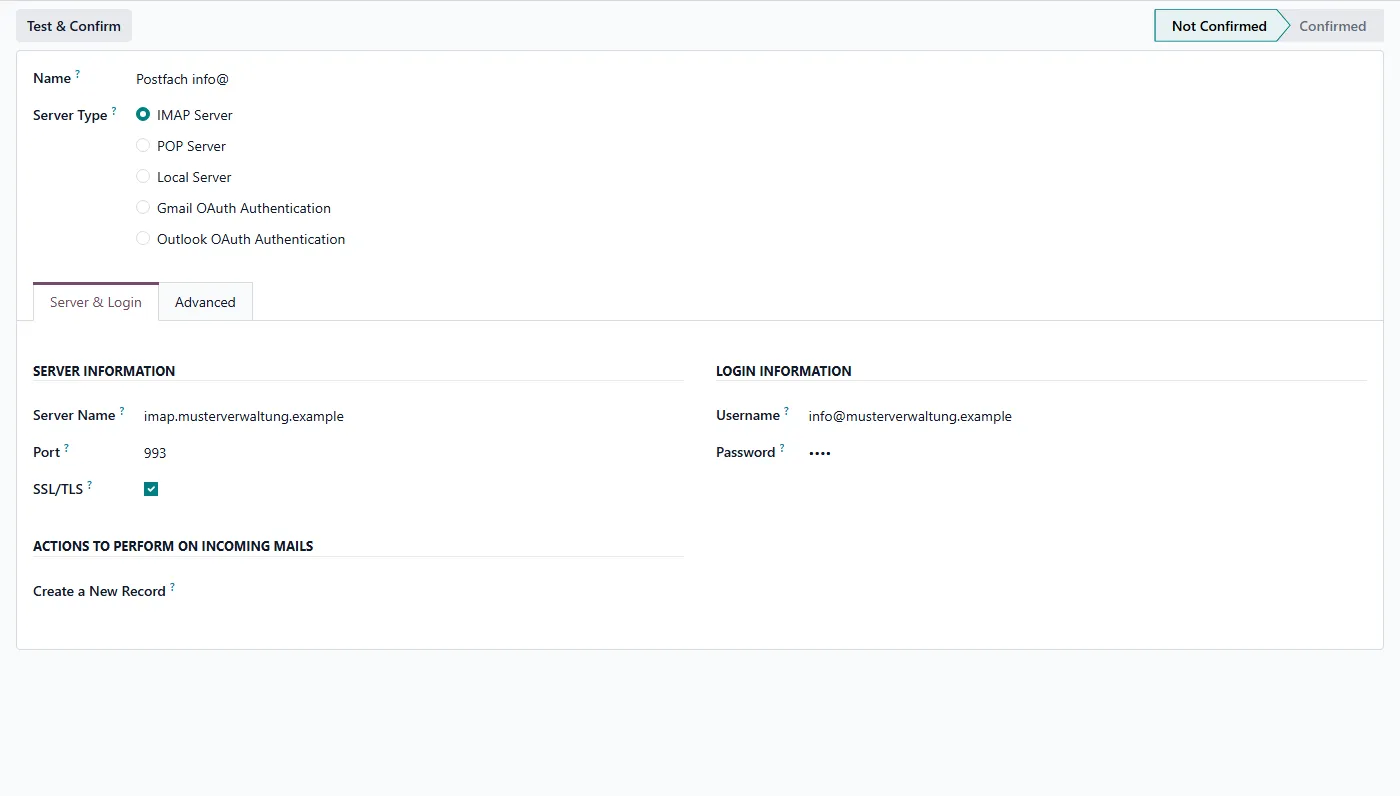
Section titled “Incoming mail server”- In the Emails block, click Incoming Email Servers and then New.
- Enter a Name and choose the Server Type:
- IMAP Server: fetches only unread emails and marks them as read. The emails stay in the mailbox. This is the recommended option.
- POP Server: fetches the emails and then deletes them from the mailbox.
- Gmail OAuth Authentication and Outlook OAuth Authentication: for Google and Microsoft 365, see below.
- On the Server & Login tab, fill in Server Name, Port and SSL/TLS: for IMAP usually “993” with the box ticked, for POP “995”.
- Enter the Username and Password of the mailbox.
- Leave Create a New Record empty if the mailbox only receives replies and alias emails. The aliases then take care of the assignment.
- Click Test & Confirm. The status changes from Not Confirmed to Confirmed.
From now on SMARTBRIX fetches the mailbox at regular intervals. Click Fetch Now to fetch immediately. To change the login details, click Reset Confirmation.
Outlook and Microsoft 365
Section titled “Outlook and Microsoft 365”Microsoft 365 often no longer allows logging in with username and password. In that case, log in through Microsoft:
- Register an app for your company with Microsoft. You receive an ID and a secret.
- In Settings, in the Emails block, tick Use an Outlook Server and enter the ID and Secret. Save.
- On the outgoing mail server, choose Outlook OAuth Authentication under Authenticate with. On the incoming mail server, choose Outlook OAuth Authentication as the Server Type.
- Use the button in the form to log in to Microsoft and grant access.
How to register the app with Microsoft is described in the Odoo documentation on Microsoft Azure. The steps apply to SMARTBRIX without changes.
Gmail works the same way with Use a Gmail Server and Gmail OAuth Authentication. The setup at Google is described in the Odoo documentation on Google OAuth.
Alias domain
Section titled “Alias domain”You set the alias domain in Settings, in the Emails block. The arrow next to it opens its form:
- Domain: your email domain.
- Used In: the companies that use this domain.
- Bounce Alias: “bounce” by default.
- Catchall Alias: “catchall” by default.
- Default From Alias: “notifications” by default.

Aliases for incoming emails
Section titled “Aliases for incoming emails”An alias connects an address with an area in SMARTBRIX. The most important one is the alias on the sales team:
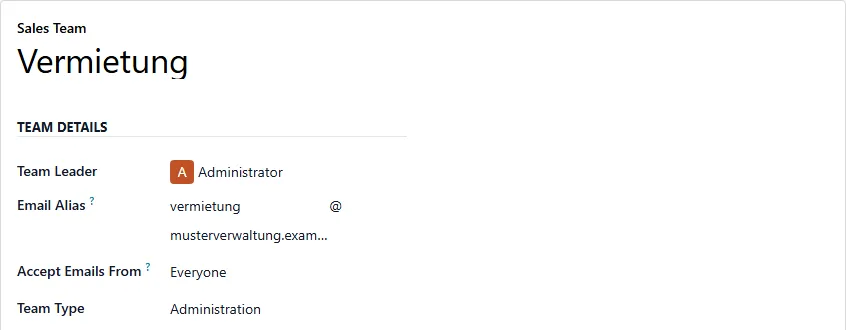
- Open the sales team, for example “Vermietung”. Set up CRM shows where the teams are.
- Under Email Alias, enter the part before the @, for example “vermietung”.
- Under Accept Emails From, set whose emails are accepted.
An email to “vermietung@musterverwaltung.example” becomes a new opportunity of this team. Inquiries from property portals arrive the same way, see Portal inquiries.
Where replies go
Section titled “Where replies go”- If a tenant replies to an email from SMARTBRIX, the reply ends up in the history of the record the email came from, such as the tenancy or the invoice.
- If that link is missing because someone writes a new email instead of replying, SMARTBRIX files the email in the history of the contact who sent it.
Sender, reply address and links
Section titled “Sender, reply address and links”Emails about properties, prospects, viewings and exposés are sent on behalf of the company that owns the property. This also applies when you are currently working in another company.
- Sender: that company’s email address. If it is missing, SMARTBRIX uses the default sender alias of its alias domain, for example “notifications@musterverwaltung.example”, then your own address. An incomplete address such as “@” counts as missing.
- Reply to: the catchall alias of that company’s alias domain. If the sales team of an opportunity has its own alias, replies to emails about the opportunity go there.
- Links to the web exposé, the property page and the page where a prospect confirms a viewing lead to that company’s website if it has its own domain. Links in internal notifications stay on your usual address.
If you work with several companies, give each company an email address and an alias domain of its own. If prospects should see links on the company’s domain, the company also needs its own website with a domain.
Signature per company
Section titled “Signature per company”If you work for several companies, each company can have its own signature block. An email about a property then carries the block of the company that owns the property, even if you are currently working in another company.
Set up the company
- Open Settings › Companies and select the company.
- On the Email Signature tab, tick Use company signature block.
- The Signature block field fills in with the company’s logo, name, address, commercial register and VAT ID. Add the management and adjust the text as needed.
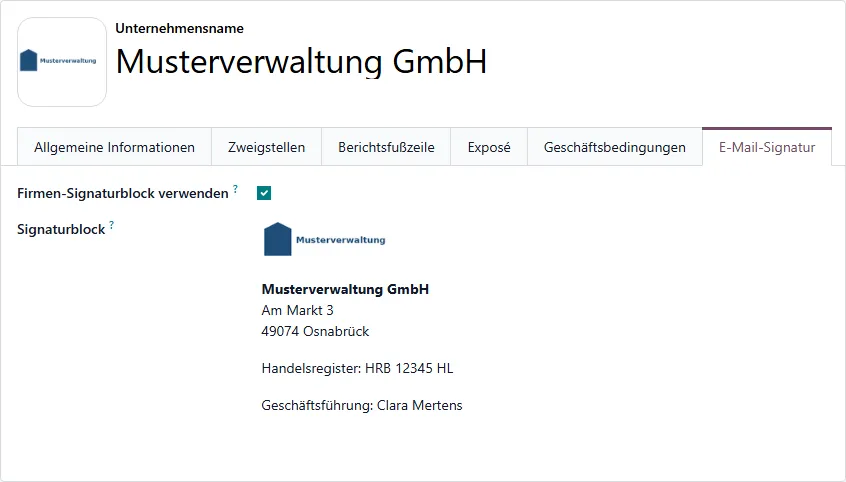
If the management changes, for example, change the block once on the company. All employees sign with the new version from the next email on.
Personal part
Above the company block is the sender’s personal part. Each user maintains it under My Profile in the field Personal signature part. If the field stays empty, SMARTBRIX uses the user’s name, job position and phone. The usual Odoo signature stays as it is and still applies to companies without a signature block.
Where the signature appears
- In emails you write in the chatter with Send message.
- In the shipped emails about viewings, in the rejection after an award and in the exposé emails, below the closing. If one of these emails goes out automatically, the responsible person of the opportunity or viewing signs. If there is none, only the company block appears.
- Replies from prospects or tenants through the portal never carry the company block.
Every email gets exactly one signature. Without the tick, everything stays as before.
Frequently asked questions
Section titled “Frequently asked questions”The test of the outgoing mail server fails. Check port and encryption together: “587” goes with STARTTLS, “465” with SSL/TLS. Microsoft 365 and Google often block password login. In that case, log in through OAuth.
Emails land in the recipient’s spam folder. Your domain must allow the mail server to send on its behalf. Your email provider tells you the required records (SPF, DKIM). They are maintained at your domain provider, not in SMARTBRIX.
Sending to several recipients shows “This email has no valid sender”. Neither the company nor its alias domain nor your user has a usable email address. Enter an email for the company or set an alias domain. Emails from the portal, the website and scheduled actions are not stopped in this case; they go out with the default sender of the outgoing mail server.
Replies from tenants do not appear in SMARTBRIX. Check that the incoming mail server is Confirmed and that emails to the catchall alias arrive in the mailbox SMARTBRIX fetches.
Didn't find an answer? Contact support