

Rent debits
Question about the manual? Ask Claude · Ask ChatGPT
The rent debit is the claim on the invoice recipient: the rent invoice for a period. SMARTBRIX creates the rent invoices automatically from the tenancies. You maintain the details on the tenancy and check the result.
What controls the rent debits
Section titled “What controls the rent debits”The details are on the tenancy under Property Administration > Tenancies > Tenancies.
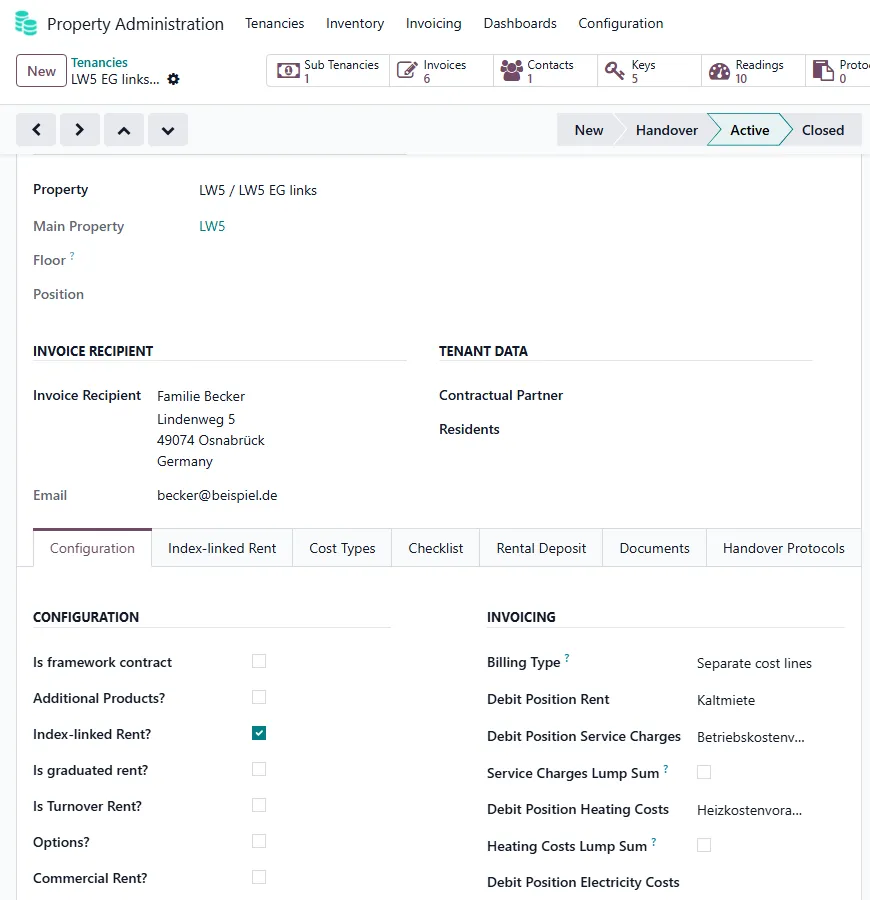
Configuration tab, Invoicing section:
- Billing Type: how many items the rent invoice gets.
- Debit Position Rent, Debit Position Service Charges, Debit Position Heating Costs, Debit Position Electricity Costs: the item under which the amounts are posted.
- Purpose: appears as the payment reference on the invoice.
- Payment Terms: determine the due date. Without payment terms, the invoice is due on the invoice date.
- Post Invoice: If this is selected, SMARTBRIX posts the rent invoices right away. Otherwise they stay as Draft until you post them yourself.
Rent table (rent lines):
Each line applies from its Start Date. Enter a new rent amount as a new line with a later start date. Invoicing always uses the line valid on the reference date. The columns for invoicing are hidden. Show them with the icon on the right edge of the table header:
- Billing Period: Monthly, Quarterly or Yearly.
- Day Of Invoice: the day of the month on which the invoice is created.
- Invoice Date Day: the day of the month that is set as the invoice date. Empty means the same as the day of invoice.
- In Advance: The invoice covers the following period. On the day of invoice in March, for example, the invoice for April is created.
You also find all rent lines of all tenancies under Property Administration > Tenancies > Rents.
How the rent invoices are created
Section titled “How the rent invoices are created”- Every day SMARTBRIX checks all running tenancies whose start date has been reached and whose end date has not passed.
- If today is the Day Of Invoice of the valid rent line, the rent invoice is created. If a month has fewer days than the day of invoice, the last day of the month counts.
- With Quarterly, the invoice is created in the first month of the quarter, with Yearly in January. With In Advance, one month earlier in each case.
- The invoice goes to the Invoice Recipient of the tenancy. Which bank account it shows is explained under Bank account on the invoice.
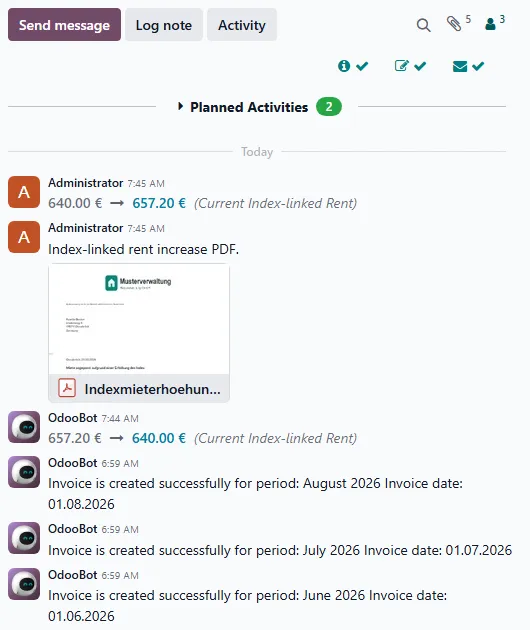
- The chatter of the tenancy then shows “Invoice is created successfully for period:” with the period and invoice date.
Sub-usages, for example a parking space rented with the apartment, do not get an invoice of their own. They are invoiced with the main tenancy.
Bank account on the invoice
Section titled “Bank account on the invoice”SMARTBRIX looks for the bank account from the rented property upwards, from the apartment through the building to the main property. The first level that has a Recipient Bank or a bank journal decides:
- If the property has a Recipient Bank on the Financial Data tab, that one applies.
- Otherwise the bank account of the bank journal whose Property field names this property applies. This only works if there is exactly one such bank account, it is active and the Send Money switch is on for the bank account. The account then shows “Trusted”.
- If a property has several bank journals, for example a rent account and a payment account, enter the Recipient Bank there. Otherwise SMARTBRIX finds no account at this level and does not look any further up.
The search stops at the company boundary: a parent property of another company does not count. If SMARTBRIX finds no account, the invoice keeps the company default.
The tenancy shows the result on the Configuration tab in the Recipient Bank field. The same rule applies to the rent invoice, the documents of the separate rent invoice, the permanent rent invoice, recharges and the service charge statement. You therefore do not need to enter the recipient bank on every child property if the building or the main property has it.
First month and tenancies entered late
Section titled “First month and tenancies entered late”If a tenancy starts during the month, the first invoice covers only the days from the start date. Example: start on 9 November, rent €1,000, so the invoice shows 22 of 30 days, or €733.33.
If you enter a tenancy only after the day of invoice of its first month, SMARTBRIX creates that invoice with the next daily run. It carries the invoice date of the missed day of invoice. Example with day of invoice 1:
- Without In Advance: On 3 November you enter a tenancy starting 9 November. The next run creates the invoice for 9 to 30 November, dated 1 November. December follows on 1 December as usual.
- With In Advance: The next run creates two invoices, one for 9 to 30 November and one for December.
This applies to monthly billing and to tenancies that start in the previous month at the earliest. For older periods and for Quarterly or Yearly, create the invoice by hand. SMARTBRIX does not create an invoice again for a period that already has one.
Separate rent invoice
Section titled “Separate rent invoice”With the Separate Rent Invoice setting, SMARTBRIX creates several documents for a period instead of one rent invoice. The rent stays on the rent invoice, the costs get documents of their own. The setting applies to all tenancies of the company.
- Open the settings and select Property Administration on the left.
- In the Products section, under Default, select Separate Rent Invoice.
- Click Save.
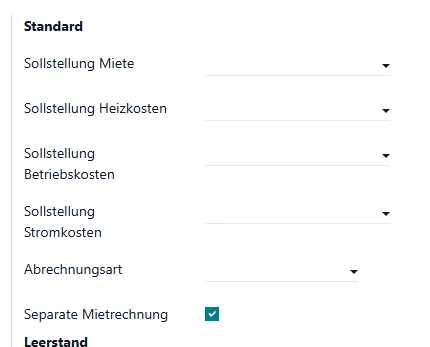
The setting takes effect from the next rent debit run and also applies to the manual rent invoice. Invoices already created stay as they are.
Which documents are created:
- Rent invoice: the rent.
- Cost documents: one document per cost item, for example one for the service charges and one for the heating costs.
- Additional Products of the tenancy: together one document of their own.
A document is only created if its item has an amount. Costs of sub-usages are on the same documents as those of the main tenancy.
The Billing Type on the tenancy determines how many cost items there are:
- Separate cost lines: service charges, heating costs and electricity costs each get a document.
- One combined cost line: the costs are together on one document.
- One line for rent and costs: the costs are on the rent invoice together with the rent. No cost document is created.
Lump sums and advance payments never share an item. If, for example, only Electricity Costs Lump Sum is selected, electricity gets an item of its own, and so a document of its own, even with one combined cost line or one line for rent and costs.
What the documents have in common:
- Invoice recipient, invoice date, service period, purpose, payment terms and bank account come from the rent invoice.
- The invoice type of all documents is Rent Invoice.
- If Post Invoice is selected on the tenancy, SMARTBRIX posts all documents. Otherwise they all stay as Draft.
- Without payment terms, all documents are due on the invoice date.
Rent reductions and discounts: An additional product with a negative amount and Reduces Rent ticked does not go on the document of the additional products but reduces the rent invoice. If the reduction is higher than the rent, the rest reduces the cost documents, first the service charges, then heating and electricity, each down to zero. Anything still left stays on the rent invoice. The service charge statement deducts the part on the cost documents from the credited prepayments. Without the tick, the amount stays on the document of the additional products, for example a discount on a fitted kitchen rented with the apartment. See Additional products.
Example: in January 2027 the Becker family pays €717.20 rent for the apartment and the garage. The rent reduction for water damage of €80.00 lowers the rent invoice to €637.20. The fitted kitchen of €45.00 and the discount of €10.00 without the tick make a document of the additional products of €35.00. The documents of €160.00 service charges and €95.00 heating costs stay unchanged.

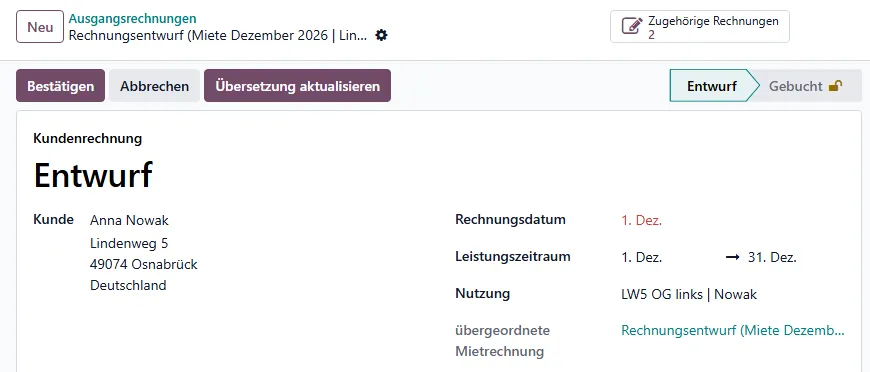
On the tenancy you find all documents under Invoices. A cost document shows the rent invoice it belongs to in the Parent Rent Invoice field. The Associated Invoices button at the top opens the other documents of the same period.
Check the rent invoices
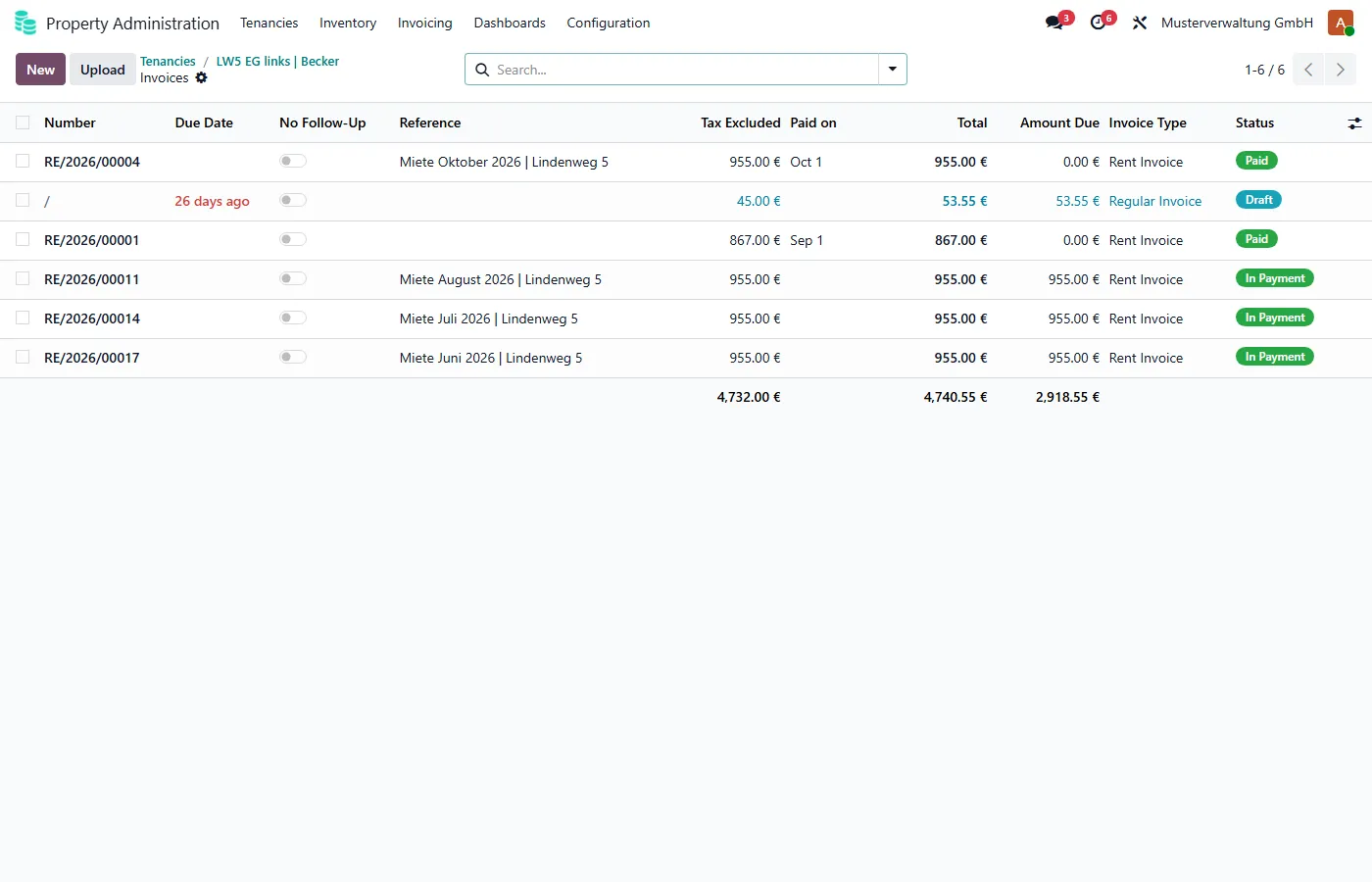
Section titled “Check the rent invoices”On the tenancy:
- Open the tenancy.
- Click Invoices at the top. You see all invoices of this tenancy.
- If invoices are in Draft, check the amounts and period and post them.
In the rent invoice log:
- Open Property Administration > Tenancies > Rent Invoice Logs.
- The list is grouped by date. Each line shows the tenancy, invoice and status.
- Filter by Errors or Skipped to find problems. The Message column states the reason.
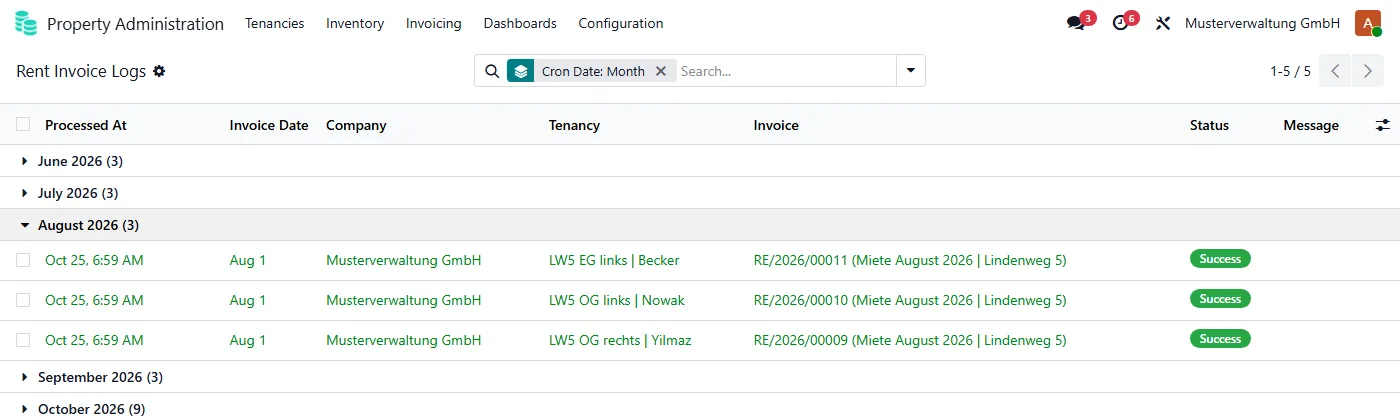
A day on which nothing was due creates no entry. A missing entry on the day of invoice, however, indicates that the tenancy was not included at all, for example because of a wrong start or end date.
If an invoice fails, the Responsible user of the property also gets an activity “Issue on tenancy”, and the error appears in the chatter of the tenancy.
Create a rent invoice by hand
Section titled “Create a rent invoice by hand”If an invoice is missing, for example after a correction of the rent line, create it by hand.
- Open Property Administration > Tenancies > Tenancies.
- Select the tenancy in the list or open it.
- Under Actions, choose Manual Rent Invoice.
- Enter Start Date and End Date. The period must include the day of invoice. With In Advance, that is the day of invoice in the month before the invoiced period: for November, for example, choose 1 October.
- Click Create Invoice.
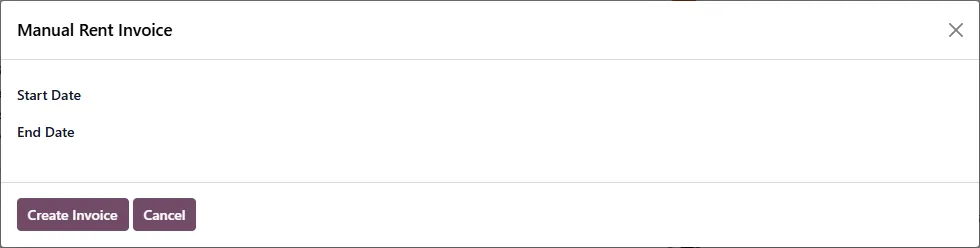
SMARTBRIX reports how many invoices were created. If none was created, the message states the reason.
How to match the payments to the rent invoices and send reminders for open amounts is shown on the Incoming payments and reminders page.
Didn't find an answer? Contact support