

Approval routes
Question about the manual? Ask Claude · Ask ChatGPT
With an approval route, an invoice is only posted once the responsible people have approved it. A route consists of stages that run one after the other, for example first the factual check by property management and, from €1,000, an additional approval by management. You create the route once and choose it on the invoice. SMARTBRIX notifies the approvers and posts the invoice after the final approval.
Prerequisites
Section titled “Prerequisites”- The Rechnungsfreigabe function is switched on. See Functions and main menu.
- Whoever sets up routes and roles needs the Manager right in the Approval Routes area of their user. Administrators have it. Any internal user entered in a stage can approve.
Switch on
Section titled “Switch on”Routes and the setting apply per company. If you work with several companies, set up each one separately.
- Open Accounting › Configuration › Settings. In the Light / Pro plan, the app is called Invoicing.
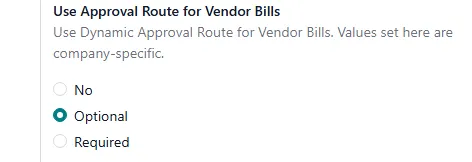
- For Use Approval Route for Vendor Bills and, if needed, Use Approval Route for Customer Invoices, choose a level:
- No: no approval; the Approval Route field on the invoice is hidden.
- Optional: you can choose a route on the invoice.
- Required: the Approval Route field must be filled in on the invoice form.
- Save.
Create roles
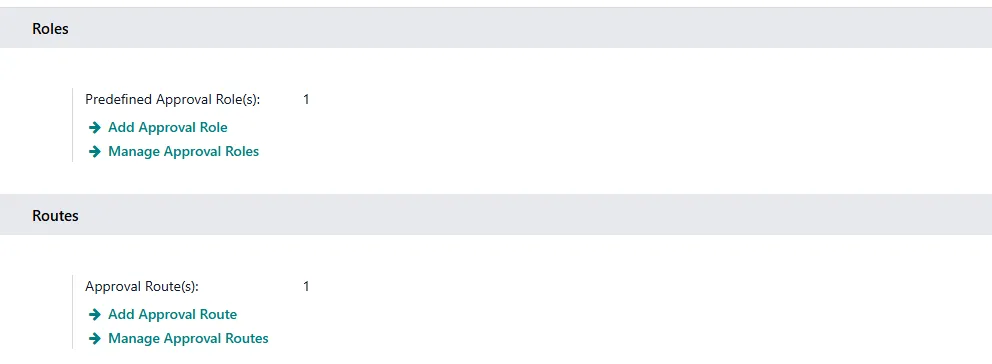
Section titled “Create roles”A role groups several users, for example everyone in property management. If someone changes position, you only change the role, not every route.
- Open Settings and, on the left, Approval Settings.
- In the Roles block, click Add Approval Role.
- Enter a name under Position/Role, for example “Property management”, and choose the company and the users.
- Save.
Create a route
Section titled “Create a route”- In the Approval Settings, click Add Approval Route in the Routes block.
- Give the route a name, for example “Vendor bills”.
- Under Applicable for, choose Journal Entry. In SMARTBRIX, invoices are journal entries.
- Check Company and choose under Responsible User who maintains the route.
- On the Stages tab, create each stage with Add New Stage (see below).
- Save.
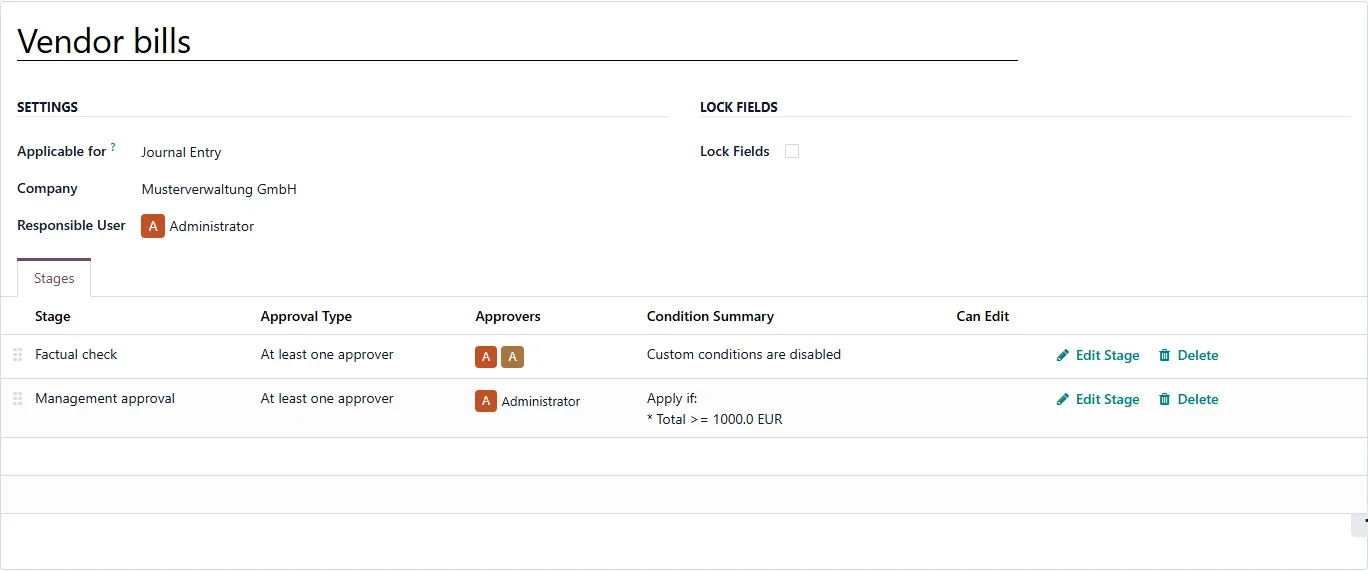
With Lock Fields you define which fields of the invoice may no longer be changed during approval.
Stages
Section titled “Stages”Each stage has:
- Title: the name of the stage, for example “Factual check”.
- Approval Type: At least one approver completes the stage with the first approval. With All approvers, everyone must approve.
- Approvers (Predefined): a role.
- Approvers (Custom): individual users. You can combine a role and users. At least one must be entered.
- Sequence: the order. Stages with a lower number come first.
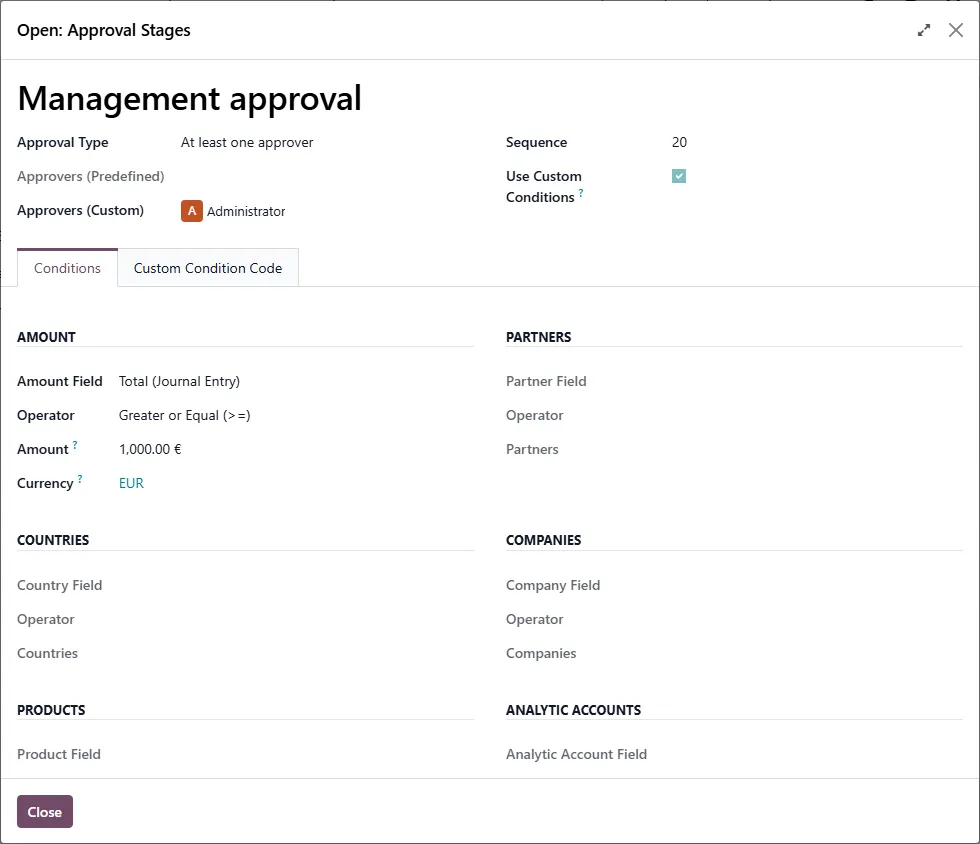
Without further settings, a stage applies to every invoice that carries this route. If it should only apply in certain cases, tick Use Custom Conditions. The Conditions tab then shows blocks for amount, partner, countries, company, products and analytic accounts. In the example, the “Management approval” stage only applies from a total of €1,000:
- Amount Field: Total (Journal Entry).
- Operator: Greater or Equal (>=).
- Amount: “€1,000.00”. The amount itself counts, so the limit is included.
If you set several conditions, all must apply. For analytic accounts, SMARTBRIX checks the analytic accounts of all invoice lines.
Have an invoice approved
Section titled “Have an invoice approved”- Record the invoice as usual, see Vendor bills.
- Choose the route in the Approval Route field on the right.
- Click Confirm.
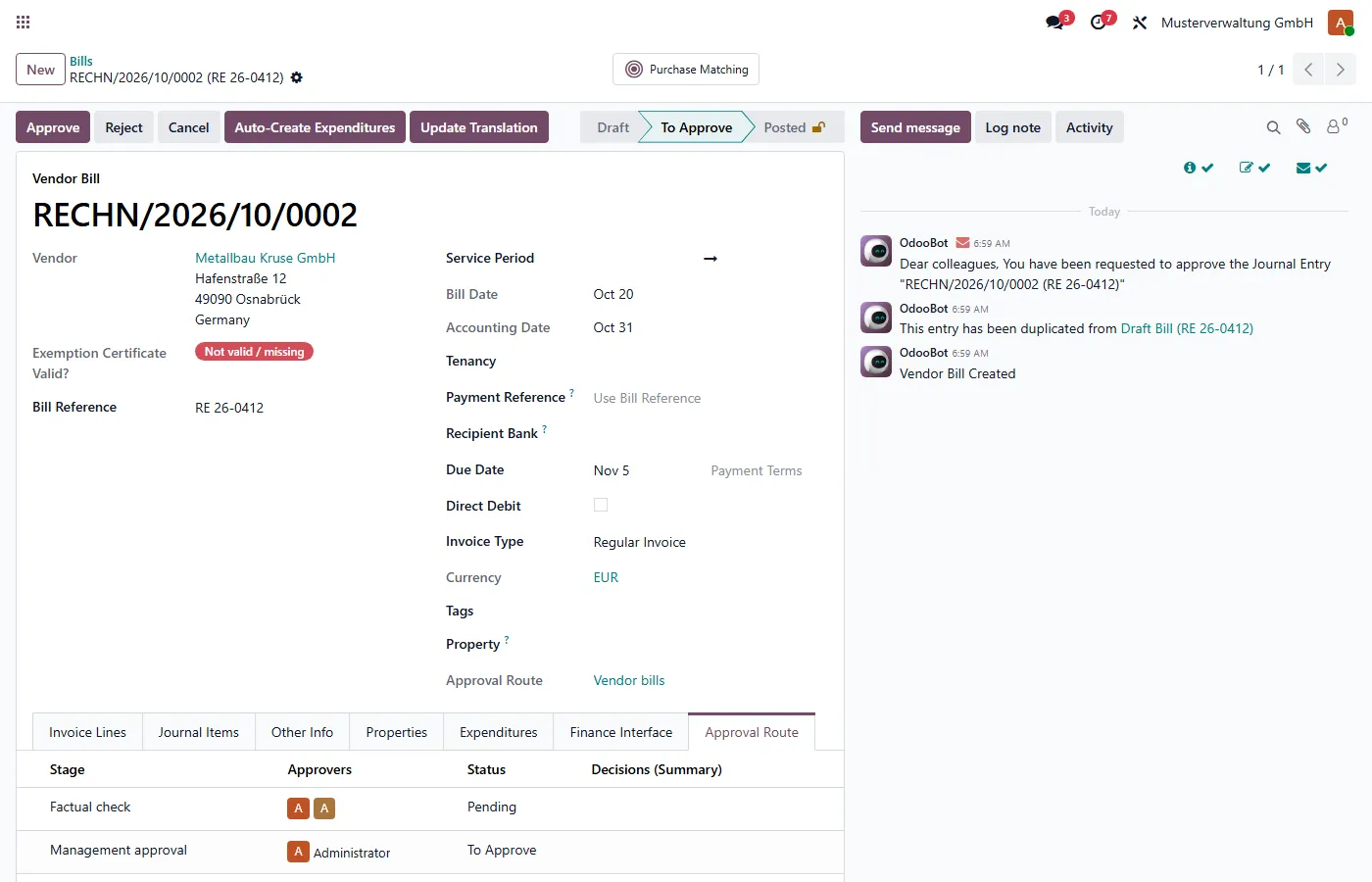
If at least one stage applies, SMARTBRIX does not post the invoice but sets it to To Approve. The approvers of the first stage receive a message asking them to approve the invoice. Depending on their user setting, it arrives by email or in the inbox. If no stage applies, the invoice is posted right away.
The Approval Route tab of the invoice shows the status of each stage:
- Pending: this stage is up next.
- To Approve: the stage comes later.
- Approved or Rejected: the stage has been decided.
Approve or reject
Section titled “Approve or reject”Only users entered in the current stage see the Approve and Reject buttons. Use the To Approve filter in the list of vendor bills to see all pending approvals.
- Approve: the stage is complete once its approval type is met. Then the next stage is up. After the last stage, SMARTBRIX posts the invoice.
- Reject: the invoice is set to Rejected. To correct it, click Cancel and then Reset to Draft. The next time you confirm, the route starts again from the beginning.
Every decision is recorded in the invoice’s history.
Have purchase orders approved
Section titled “Have purchase orders approved”With the Einkaufsfreigabe function, purchase orders from the Purchase app also run through an approval route. Roles and stages work as for invoices. The purchase order is only confirmed once all applicable stages have approved it.
Switch on
Section titled “Switch on”- Open Purchase › Configuration › Settings.
- For Use Approval Route for Purchases, choose No, Optional or Required. The levels work as for invoices, and the setting applies per company.
- Save.
Then create a separate route in the Approval Settings and choose Purchase Order under Applicable for. A route for journal entries is not available on a purchase order. As the Amount Field of a condition, choose Total (Purchase Order).
Process
Section titled “Process”- Create the request for quotation as usual under Purchase › Orders › Requests for Quotation.
- Choose the route in the Approval Route field. This only works as long as the request for quotation has not been sent by email.
- Click Confirm Order.
If at least one stage applies, the purchase order is set to To Approve, and the approvers of the first stage receive the same message as for invoices. If no stage applies, the purchase order is confirmed immediately. The Approval Route tab of the purchase order shows the status of each stage.
Users entered in the current stage see the Approve Order button. After approval in the last stage, SMARTBRIX confirms the purchase order.
Purchase orders have no reject button. If a purchase order should not go through, click Cancel and write the reason as a note in the history. With Set to Draft and another Confirm Order, the route starts again from the beginning.
Special cases
Section titled “Special cases”Recurring invoices and installments: a follow-up invoice takes over the route of the template. With Post Follow-up Invoices Automatically, it is first set to To Approve. See Installments with an approval route.
Several companies: routes and roles belong to one company. For a new company, create them again, see Set up a new company.
What is not included
Section titled “What is not included”- SMARTBRIX does not choose a route by itself. You choose it on each invoice and purchase order, even with Required.
- Property and owner are not available as conditions. If you maintain analytic accounts per property, you can distinguish by those.
- When rejecting, SMARTBRIX does not ask for a reason. Write it as a note in the history.
- There is no substitute rule for absences. Enter several users in the role instead.
Didn't find an answer? Contact support