

The cash receipts statement shows income and income-related expenses per main property, structured like Schedule V (Anlage V), the German tax form for rental income. It counts when the money moved, not when the invoice was written. It is based on your rent invoices, your vendor bills and the matched bank entries.
How to open and read the report is described in Evaluate the cash receipts statement.
Assign accounts
Section titled “Assign accounts”The report recognizes from a tag on the account which line of Schedule V the account belongs to. You set this tag once per account.
What you do
Section titled “What you do”-
Open Accounting › Configuration › Chart of Accounts and there an account to which you post rents, service charges or costs.
-
Click into the Tags field and type “Schedule V”. The list shows all lines of the form.
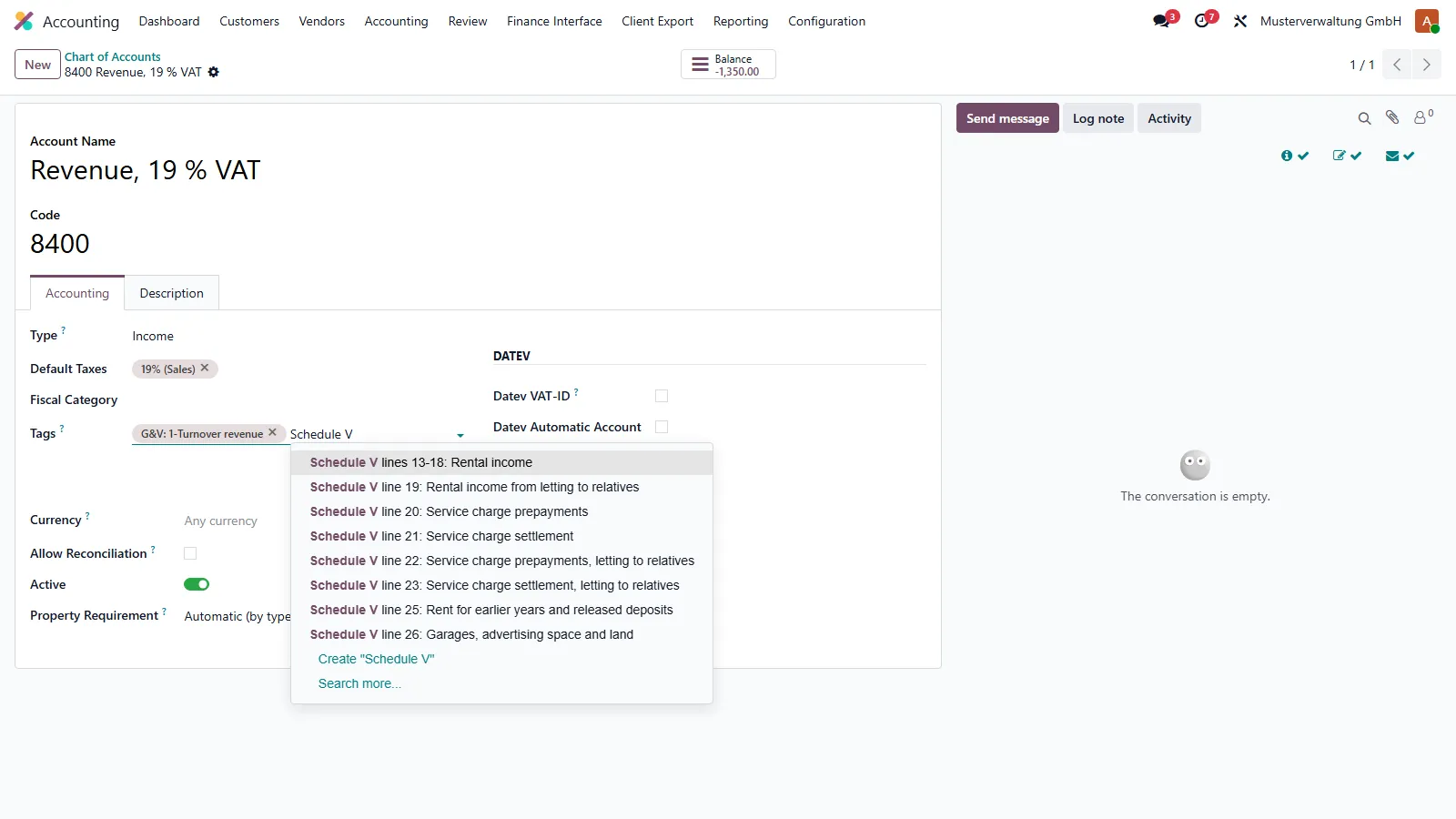
-
Choose the matching line and save. The existing tags stay in place.
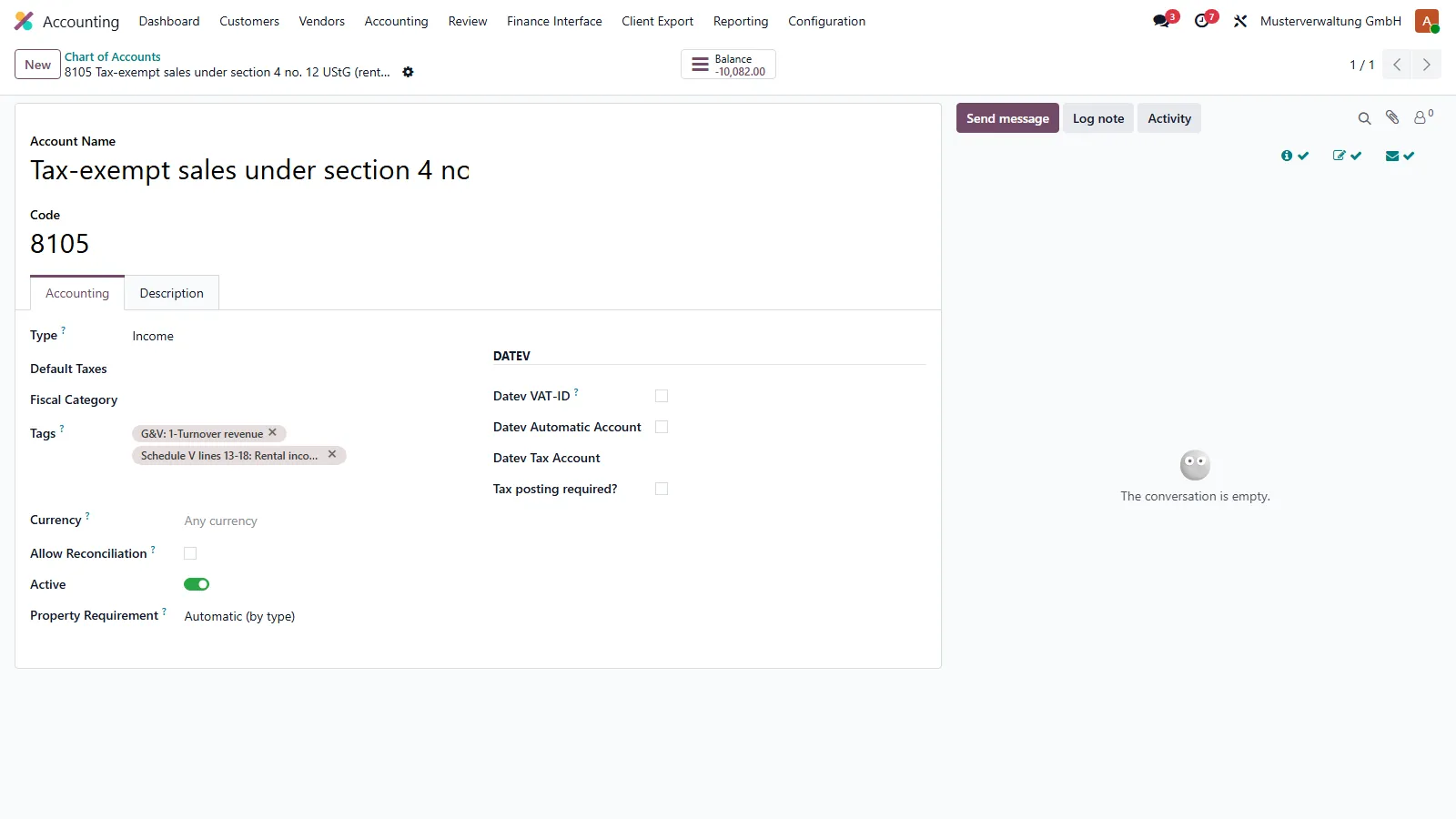
-
Repeat this for every income and expense account. The following table shows the usual assignments.
| What you post to the account | Tag |
|---|---|
| Rent for apartments and commercial units | Schedule V lines 13-18: Rental income |
| Service charge prepayments | Schedule V line 20: Service charge prepayments |
| Additional payments and refunds from the service charge statement | Schedule V line 21: Service charge settlement |
| Garages and parking spaces | Schedule V line 26: Garages, advertising space and land |
| VAT on rent | Schedule V line 27: VAT received |
| Maintenance and repairs | Schedule V line 55: Maintenance expenses deductible in full |
| Property tax, insurance, waste, water and other recoverable costs | Schedule V lines 73-75: Recoverable running costs |
| Management and bank fees | Schedule V lines 76-78: Non-recoverable running costs |
| Input VAT from vendor bills | Schedule V line 84: Input VAT included in the expenses |
| VAT payable to the tax office | Schedule V line 79: VAT paid to the tax office and Schedule V line 28: VAT refunded by the tax office |
What happens automatically
Section titled “What happens automatically”- One rent account is enough for apartments and commercial units. Whether a rent ends up in lines 13 to 15 or 16 to 18 depends on the category of the property on the invoice line.
- Income and expense accounts without an Schedule V tag appear in two remainder lines at the end of the report. This shows you what is still missing.
- Lines 27 and 84 only count real tax entries. The monthly VAT closing stays out.
- Lines 28 and 79 only count bank and cash entries. Payments go to line 79, refunds to line 28, even if both use the same account.
Check invoices and payments
Section titled “Check invoices and payments”An invoice only counts once the payment is matched with it. It then counts on the date of the payment.
What you do
Section titled “What you do”-
Match your bank statements with the invoices as usual.
-
Open Customers › Invoices and check the Paid on and Status columns. Invoices with “Paid” or “Partially Paid” count; invoices with “Posted” do not count yet.
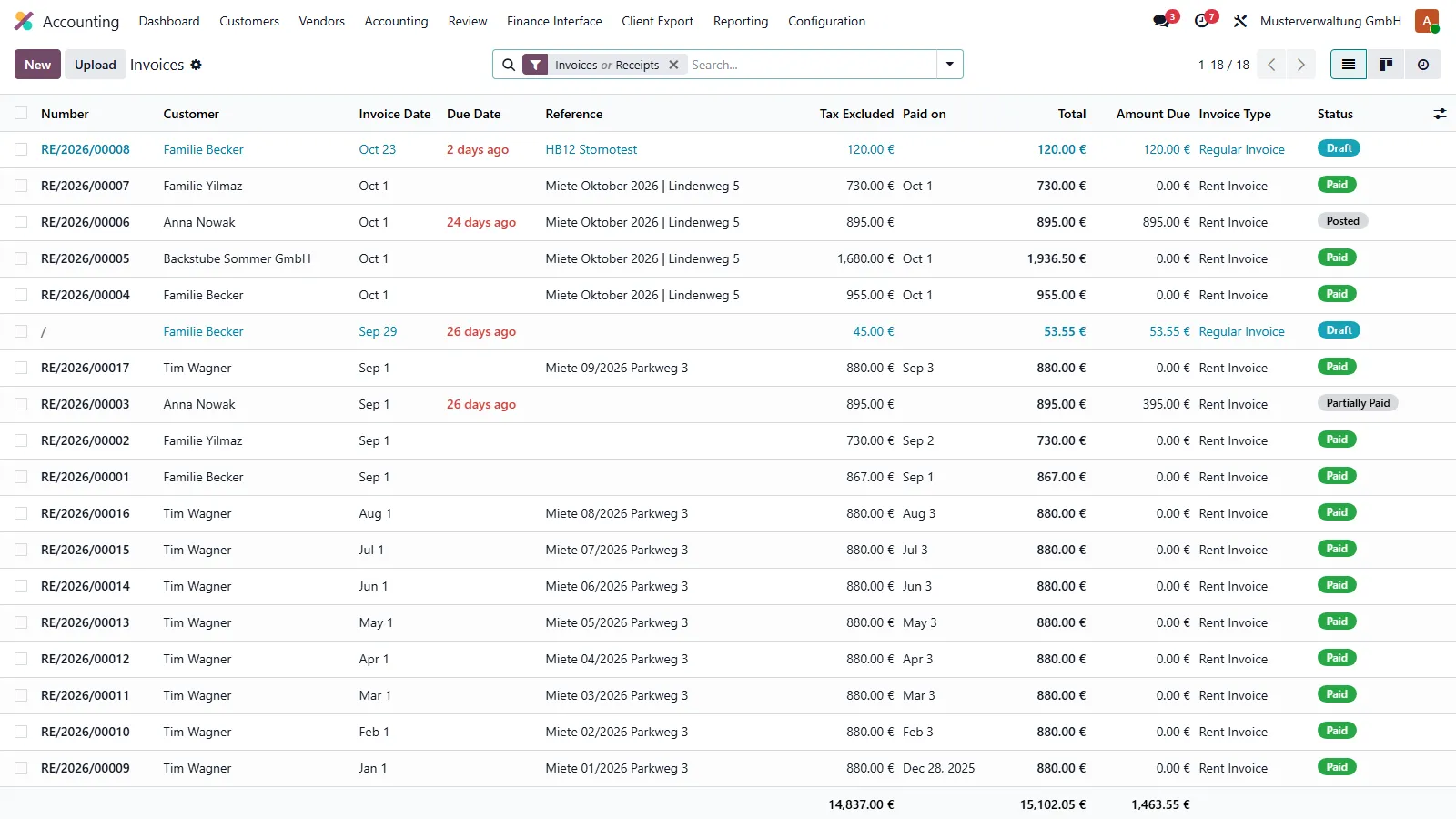
-
For vendor bills, check that every invoice line has a property. Rent invoices from Property Administration carry it automatically once they are posted.
-
Open Accounting › Configuration › Settings and look at Historical Stamping in the Property Dimension section. If Pending Documents shows a number, these documents were posted before the property assignment was set up. Ask SMARTBRIX support to start the historical stamping.
What happens automatically
Section titled “What happens automatically”- A partial payment counts with its share. If a tenant pays €400 on an invoice of €930, the report splits the €400 proportionally between rent and service charges.
- An open invoice does not appear at all.
- A credit note against an invoice cancels it out in the same line.
- Entries posted directly from the bank to an income or expense account count on their posting date.
- Payments on receivables from the previous year appear in line 25 if the counter account of the carry-forward entry has the tag Schedule V line 25: Rent for earlier years and released deposits.
Assign depreciation
Section titled “Assign depreciation”You only need this section if you keep assets in SMARTBRIX. Without asset management, the depreciation lines stay empty and the depreciation comes from your tax advisor as before.
What you do
Section titled “What you do”- Open Accounting › Accounting › Assets and there the asset.
- In the Property field, choose the apartment or the building.
- Give the depreciation expense account the matching tag, for example Schedule V lines 42-45: Depreciation of movable assets.
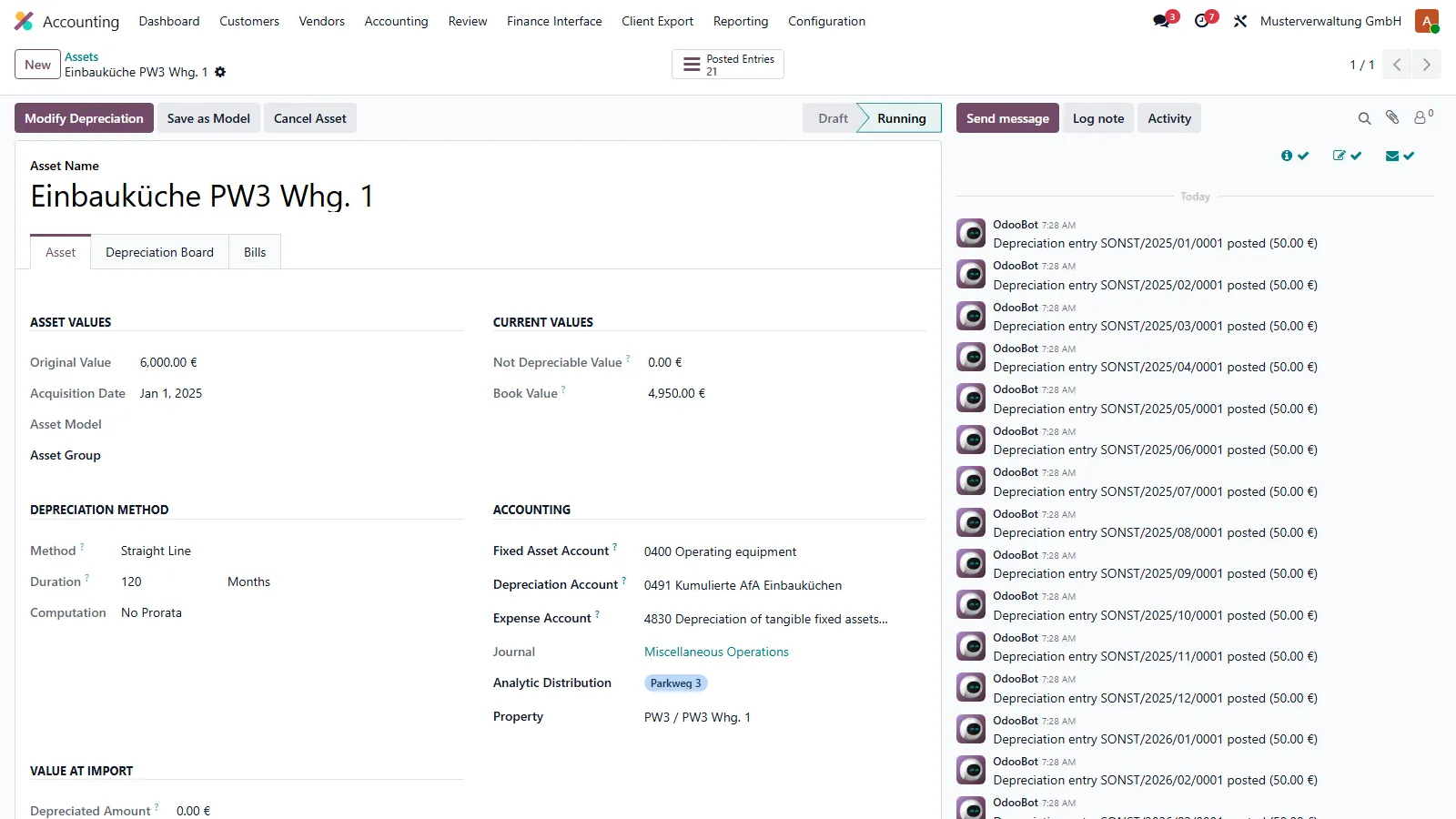
What happens automatically
Section titled “What happens automatically”- If the Analytic Distribution is empty, it is prefilled with the analytic account of the property. This is how the depreciation reaches the property.
- Depreciation counts on its posting date.
- The property needs an analytic account for this. Without one, the depreciation appears in the Unassigned column.
Didn't find an answer? Contact support