

You complete these steps once per company, before the first community issues owner contributions.
Settings
Section titled “Settings”- Under Invoicing › Customers › Products, create four services, for example “Owner contribution, operating costs”, “Owner contribution, heating costs”, “Owner contribution, maintenance reserve” and “Settlement balance”.
- Open Settings and choose Condominium on the left. The settings are in the Owner Contributions and Booking section.
- Under Charge Positions, choose the three owner contribution products for operating costs, reserve and heating costs, and under Settlement Balance Product the fourth.
- Under Community Booking Safeguard, choose between Off, Warn & flag and Block. Click Save.
- Under Accounting › Customers › Products, create four services, for example “Owner contribution, operating costs”, “Owner contribution, heating costs”, “Owner contribution, maintenance reserve” and “Settlement balance”.
- Open Settings and choose Condominium on the left. The settings are in the Owner Contributions and Booking section.
- Under Charge Positions, choose the three owner contribution products for operating costs, reserve and heating costs, and under Settlement Balance Product the fourth.
- Under Community Booking Safeguard, choose between Off, Warn & flag and Block. Click Save.
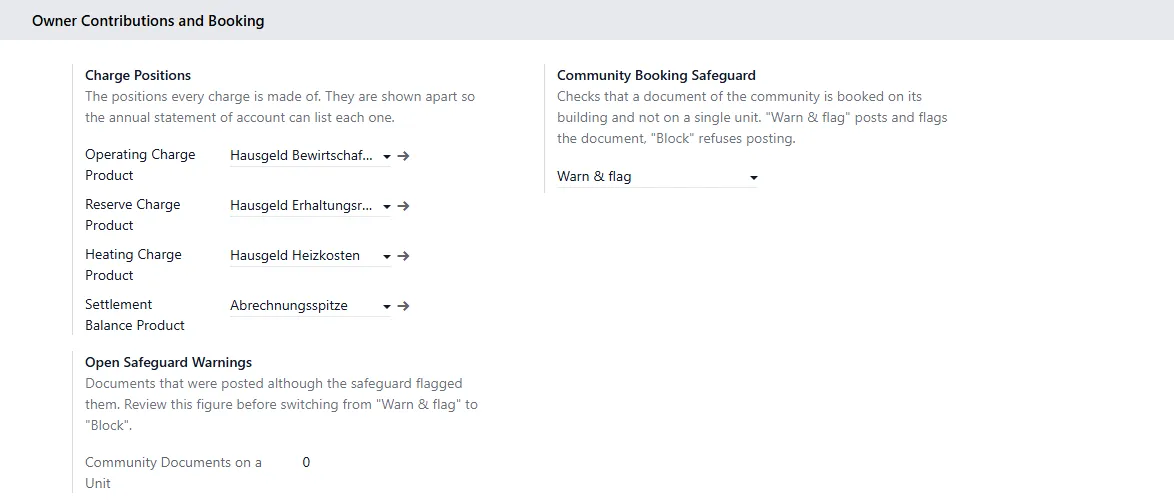
Each owner contribution invoice then carries three lines, one per product. This way a partial payment can later be matched to each item.
Property Manager right
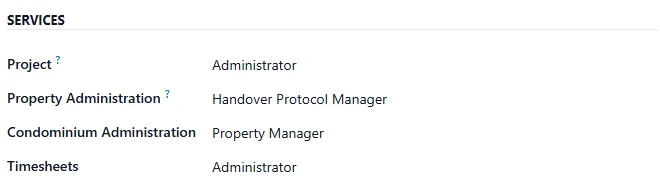
Section titled “Property Manager right”The co-ownership share weights costs and votes. Changing it on a saved condominium ownership and deleting an ownership is reserved for the Property Manager right.
- Open Settings › Users & Companies › Users and choose the user.
- On the Access Rights tab, in the Condominium Administration area, choose the entry Property Manager and save.
Condominium cost types
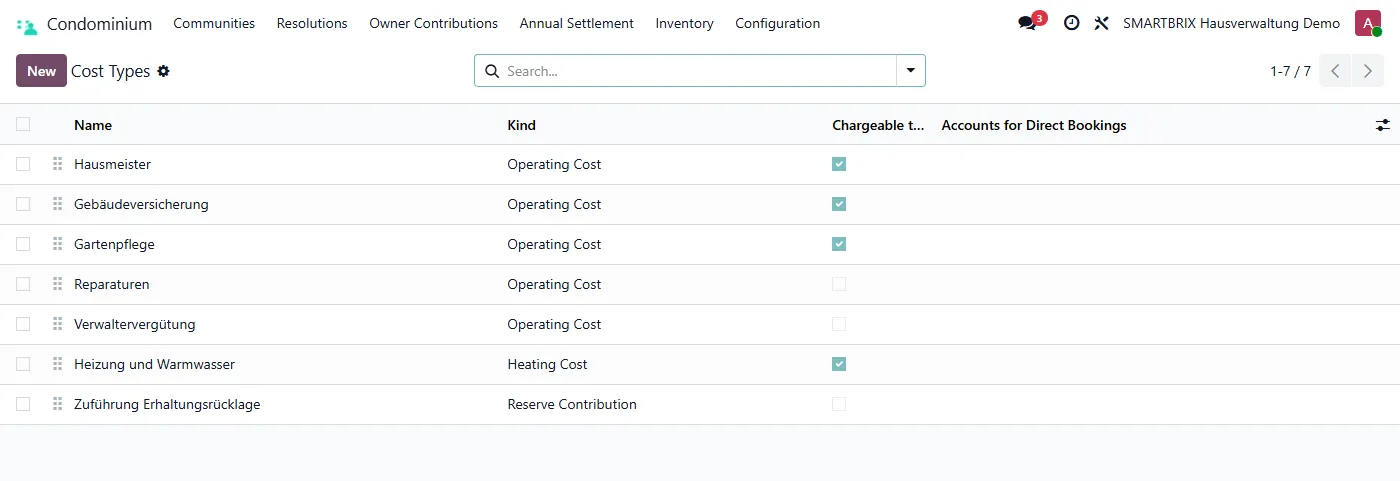
Section titled “Condominium cost types”- Open Condominium › Configuration › Cost Types and click New.
- Enter the Name and choose the Kind: Operating Cost, Heating Cost or Reserve Contribution.
- Tick Chargeable to Tenants if an apartment owner who rents out the unit may pass the costs on to the tenant.
- Under Tax Deduction § 35a, choose how the labor costs of this cost type appear in the owner contribution statement: Household-Related Service, Craftsman’s Service or Not Eligible. If empty, they appear as “Not assigned” and count toward no total.
- Under Accounts for Direct Bookings, enter the accounts to which you post costs of this type without an invoice, for example account fees (see Post costs). An account belongs to at most one condominium cost type. Income accounts go here too, for example for renting out a common area: the income then reduces the costs of this type and is distributed with its allocation key (see Income without a condominium cost type). If you add an account later, SMARTBRIX reassigns the entries already posted on it, except in years with a resolved annual settlement.
- Drag the lines by the handle into the order in which they should appear in the settlement.
Building parts
Section titled “Building parts”Building parts are the catalog for the cost bearing of the communities. SMARTBRIX comes with Windows, Balcony, Terrace, Roof, Locking System, Apartment Entrance Door, Radiators and Pipes within the Unit.
- Open Condominium › Configuration › Building Parts and click New.
- Enter the Name.
- Under Only for Units with, choose Balcony, Terrace or Parking Space if not every unit has this building part. The rule then only appears on units with this feature. Leave the field empty for building parts every unit has.
- Drag the lines by the handle into the order in which they should appear on the community and the unit.
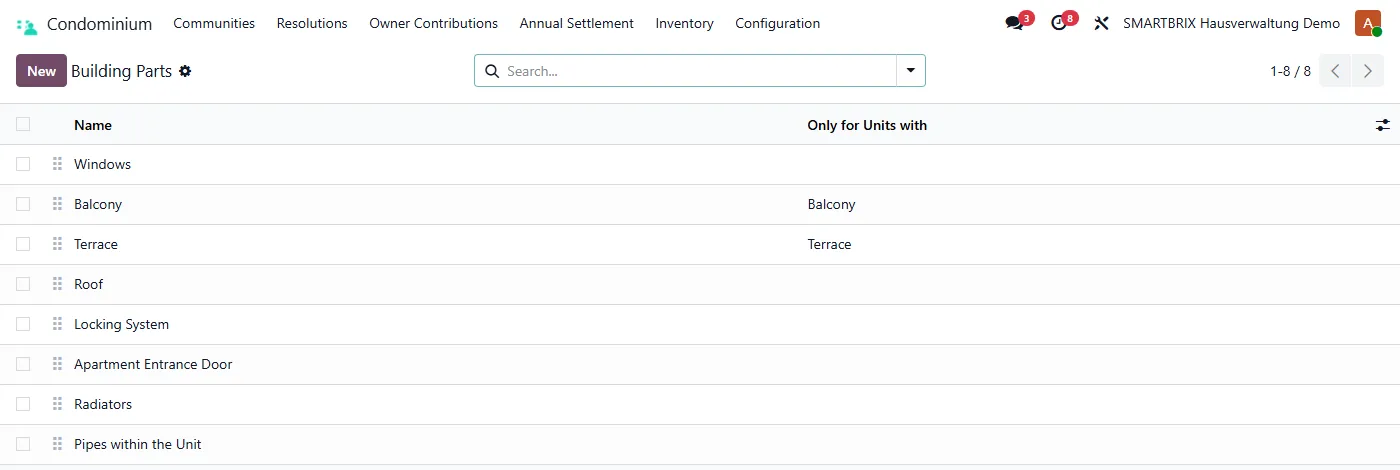
The list applies to all communities.
Allocation keys
Section titled “Allocation keys”Without an entry, SMARTBRIX allocates each condominium cost type by co-ownership shares, as the law provides. You only create an allocation key where a community allocates differently.
- Open Condominium › Configuration › Allocation Keys and click New.
- Choose the Community and Cost Type, and under From Fiscal Year enter the first year the key applies to.
- Choose the Key. For Object Key, choose a key of the community’s building in the Object Key column (see Object keys).
- Under Basis, choose Declaration of Division or Resolution. With Resolution, choose in the Resolution column the resolution of the meeting that changed the key. Save.
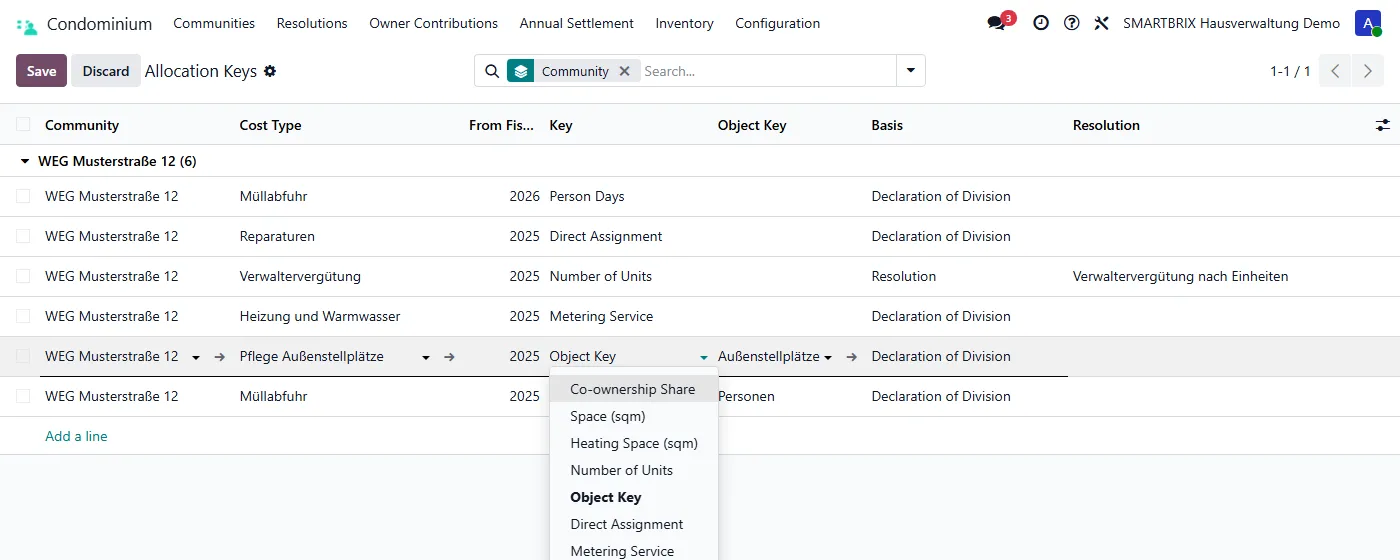
A key with the basis Resolution appears on the resolution on the Allocation Keys tab.
A key applies until an entry for a later fiscal year replaces it. In the example, the community allocates the management fee by Number of Units, repairs by Direct Assignment and heating by Metering Service.
Resolution templates
Section titled “Resolution templates”Resolution templates are patterns for agenda items that come up again and again. How to use a template for an agenda item is described under Resolution procedures and register of resolutions.
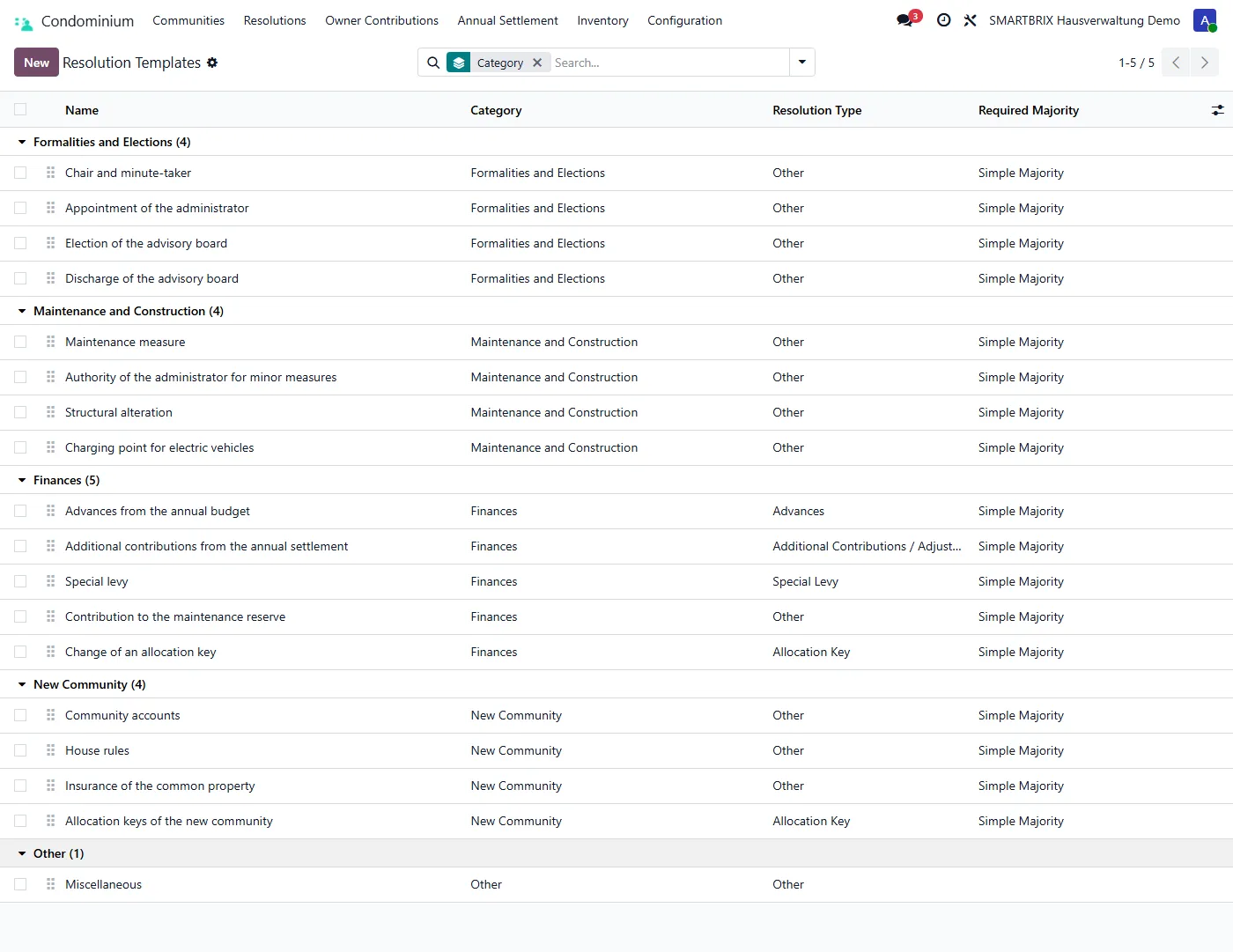
Under Condominium › Configuration › Resolution Templates, SMARTBRIX ships 18 templates, grouped by Category:
- Formalities and Elections: chair and minute-taker, appointment of the administrator, election and discharge of the advisory board.
- Finances: advances from the annual budget, additional contributions from the annual settlement, special levy, contribution to the maintenance reserve, change of an allocation key.
- Maintenance and Construction: maintenance measure, authority of the administrator for minor measures, structural alteration, charging point for electric vehicles.
- New Community: community accounts, house rules, insurance of the common property, allocation keys of the new community.
- Other: miscellaneous.
The texts are non-binding patterns. Check them for your communities and adapt them:
- Open a template or click New.
- Enter the Name under which the template is offered and choose the Category.
- Under Item Type, choose Vote or Information. For Vote, choose the Resolution Type and the Required Majority, and tick Procedural Matter if needed. If the required majority stays empty, the default of the procedure applies: a simple majority in an owners’ meeting, unanimity in a circular procedure.
- Write the Subject, the Explanation and, for a vote, the Motion. Put details that differ per community as placeholders in square brackets, such as “[year]” or “[amount]”. They stay in the agenda item until you replace them.
- Save.
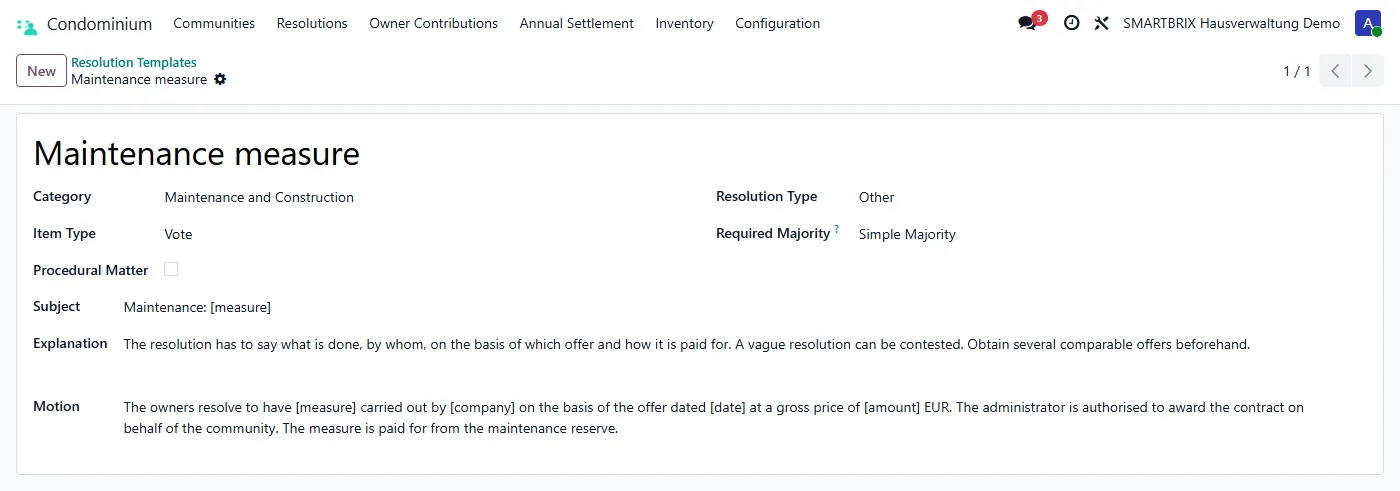
If you work with several companies, assign a template to one of them under Company. If it stays empty, the template is offered in all companies. Change the order within a category by dragging the handle in the list.
Archive a template you no longer need via Actions › Archive. It is then no longer offered; the Archived filter shows it again. SMARTBRIX updates do not overwrite your changes to the templates that ship with it.
Didn't find an answer? Contact support