

Award
Question about the manual? Ask Claude · Ask ChatGPT
Once a prospect gets the property, the other inquiries about it are usually settled. After the win, SMARTBRIX shows them to you in a dialog. For each line you decide whether the opportunity is closed and whether the prospect receives a rejection. SMARTBRIX does not create any new records in the process.
When the dialog appears
Section titled “When the dialog appears”The Remaining Opportunities dialog opens when other opportunities for the property are still open, after these steps:
- You click Won on the opportunity.
- You click Convert to Tenancy and create the tenancy. After the dialog, the new tenancy opens.
- You click Accept on an application (with the customer portal, see Decision).
- You select opportunities in the Open after award list and click Close.
If you win an opportunity without an on-screen dialog, for example by dragging the card into the won stage or through a mass action, the After an award setting applies (see below).
The dialog
Section titled “The dialog”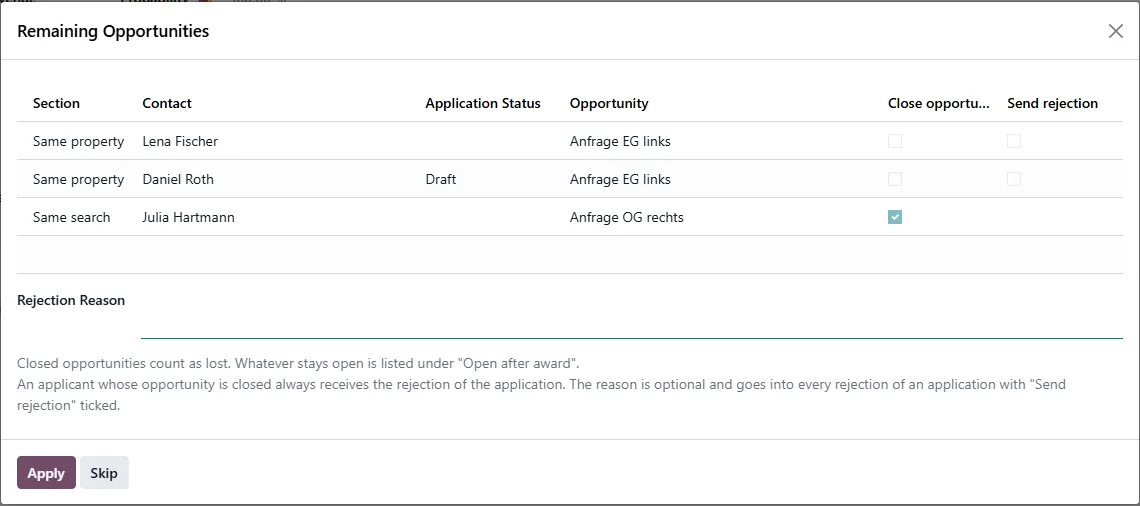
Each line is an open opportunity. The Section column says why it is included:
- Same property: opportunities of other prospects for the same property.
- Same search: further open opportunities of the person who got the property, for properties with the same type of marketing and the same basic type. Someone who rents an apartment usually no longer needs the second apartment they inquired about. An inquiry about a parking space, on the other hand, stays open. These lines never get a rejection.
The person who gets the property never appears in the Same property section. This applies to the contact of the won opportunity, the people in its Interested Persons list and the accepted applicant.
For each line you set two checkboxes:
- Close opportunity: the opportunity is marked as lost, with the lost reason “Object awarded elsewhere” (same property) or “Chose another object” (same search).
- Send rejection: the prospect receives the email “Your inquiry about …” with the name of the property, in their language. It does not mention other properties.
For Same search, Close opportunity is preselected for rent and lease, but not for purchase. If the prospect is looking for several properties according to the search profile, the checkbox also stays empty.
Click Apply to carry out your selection. Skip leaves all opportunities open. After a conversion, both buttons continue to the new tenancy. Whatever stays open you find later under Open after award.
With applications
Section titled “With applications”If you use the customer portal for applications, the dialog also shows the Application Status column and the Rejection Reason field.
- If the contact of a line has an open application for the property, Send rejection rejects the application. The applicant then receives the email “Decision on your application” with the Rejection Reason, if you entered one, and no second email about the opportunity.
- If you only close the opportunity, the application is rejected as well, without a reason.
- Open applications for the property without an opportunity of their own appear as lines without an opportunity in the dialog. There, Send rejection rejects the application; nothing is closed.
- If an opportunity in the Same search section is closed, SMARTBRIX withdraws an open application of this person. Its status is then “Withdrawn”.
Open after award
Section titled “Open after award”CRM › Sales › Open after award lists open opportunities for properties for which another opportunity was won after they came in. It also lists open opportunities for rented properties (rent and lease). The list is a filter: as soon as an opportunity is closed, it disappears.
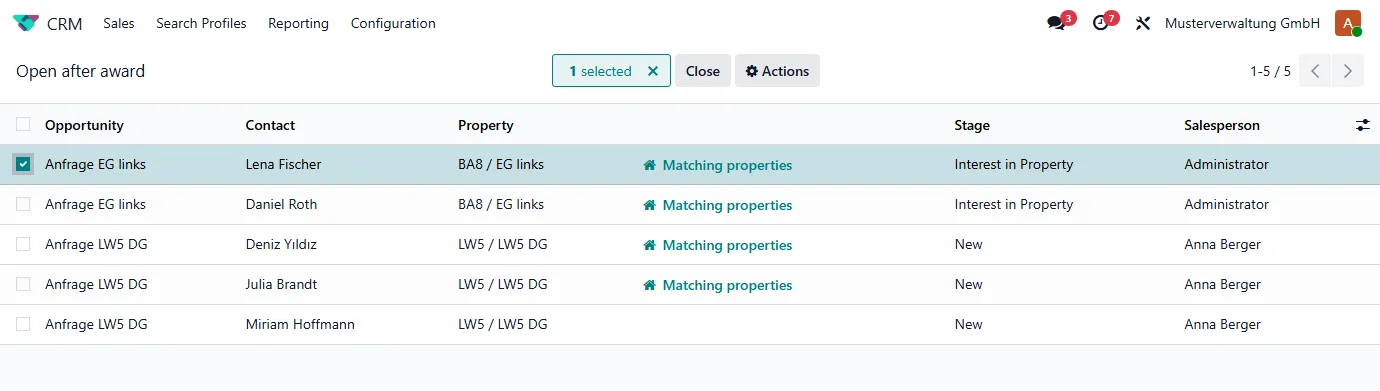
- Select the opportunities you want to decide on.
- Click Close. The Remaining Opportunities dialog opens with your selection.
- Set the checkboxes and click Apply.
The Matching properties button on the line opens the matches of the opportunity’s search profile. This way you offer the prospect another property instead of just rejecting them. Without a search profile, the button is missing.
The “After an award” setting
Section titled “The “After an award” setting”Under Settings › Property Management, in the Award section, you decide how the checkboxes are preselected.
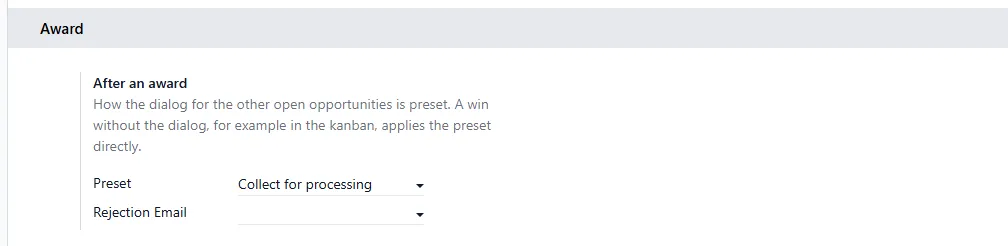
- Preset: Collect for processing (the default) leaves the checkboxes in the Same property section empty. Close and send rejection presets Close opportunity and Send rejection.
- Rejection Email: a template of your own for the rejection. If empty, SMARTBRIX uses the standard email.
Without the dialog, SMARTBRIX applies the preset directly:
- Collect for processing: everything stays open and appears under Open after award. If applications for the property are still open, SMARTBRIX creates the task “Reject remaining applicants” on the won opportunity.
- Close and send rejection: the remaining opportunities for the property are closed, the rejections are sent and open applications are rejected. SMARTBRIX closes further opportunities of the same search for rent and lease without an email.
Effect on search profiles
Section titled “Effect on search profiles”- The search profile of the won opportunity counts as done, unless it is looking for several properties. See Search profiles.
- Opportunities without a property do not appear in the dialog. They end with their search profile.
- A closed opportunity does not change the search profile of its prospect. The prospect continues to find matches through Matching properties.
Frequently asked questions
Section titled “Frequently asked questions”Why does no dialog open after “Won”? No other opportunity for the property is open, and the person has no further opportunity of the same search.
Why is an opportunity missing from “Open after award”? The list only shows opportunities that came in before the win. Accepting an application alone does not win the opportunity yet; the opportunity only appears once an opportunity for the property has been won.
Can I reopen a closed opportunity? Yes. It is lost, so you can find it with the Lost filter and bring it back with Restore. This does not undo a rejection that was sent or an application that was rejected.
Didn't find an answer? Contact support