

Letters
Question about the manual? Ask Claude · Ask ChatGPT
With the Letters function you write a letter in your company’s letter layout from a tenancy or directly on a contact. If you select several tenancies, you get a serial letter: one letter per recipient. SMARTBRIX stores each letter as a record of its own, notes it in the history of the tenancy and provides all letters to be printed as one PDF for download.
Where to write letters
Section titled “Where to write letters”You can write letters in six places. In four of them, the Write letter action is available in the list and in the form:
- Tenancies: the recipients are the contract partners; if there are none, the invoice recipient.
- Options (renewal options under Property Administration › Tenancies › Options): the recipients are the contract partners of the tenancy; if there are none, the invoice recipient. Here the template “Option Notice (Opt-in)” that comes with the software is available.
- Search Profiles: the recipient is the contact of the search profile.
- Contacts (Contacts app): the recipient is the contact itself. This way you also reach contacts without a tenancy, such as service providers or authorities.
On the owner statement in condominium management, the button is called Write Letter and sits at the top of the form. The recipients are the owners of the unit, each with a letter of their own. See Owner statement.
In the list and form of the ownerships, the action is called Write letter. The recipients are all owners of each selected ownership, each with a letter of their own; if no owners are recorded, the invoice address. See Letter to owners.
Properties do not have this action.
Write a letter
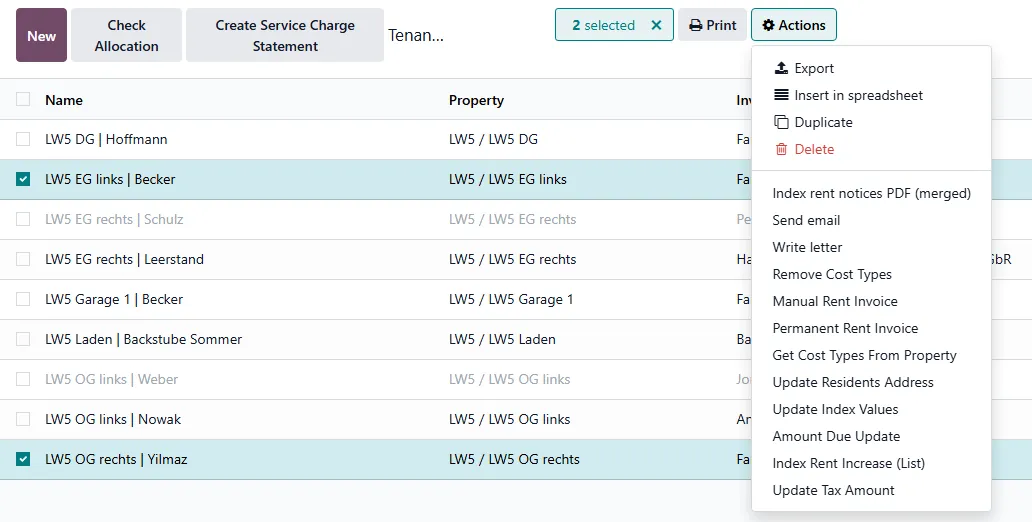
Section titled “Write a letter”- Open Property Administration › Tenancies › Tenancies and select the tenancies whose tenants should receive the letter. For a single letter, one tenancy is enough.
- Click Actions and then Write letter.
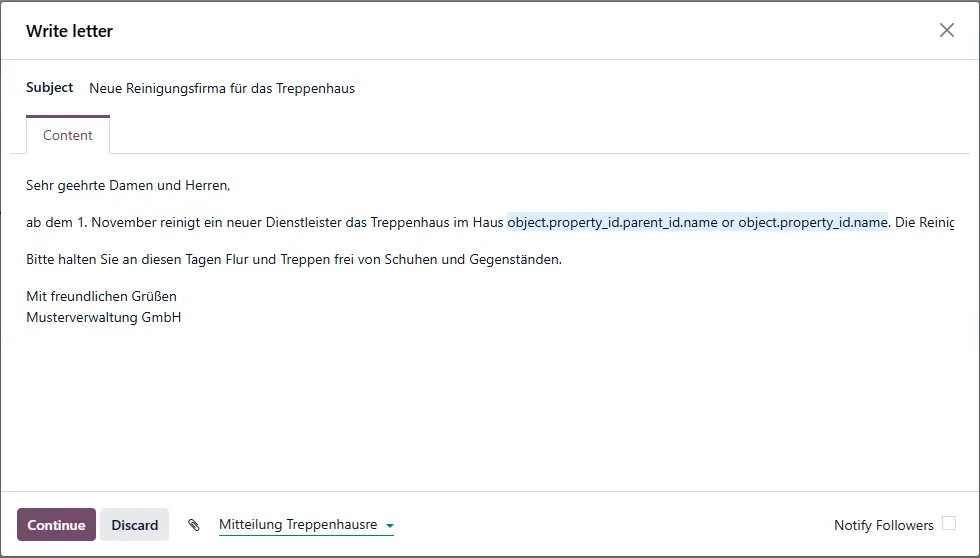
- At the bottom, next to the paper clip, choose a template in the Load a template field, or write the Subject and Content yourself. Only templates with the Suitable as a letter box ticked are offered.
- Write the salutation, text and closing in full in the content. The letter does not add them itself, and there is no field for a signature.
- Use the paper clip to attach whatever should go with the letter. Only PDF attachments are printed.
- Click Continue.
Check and create letters
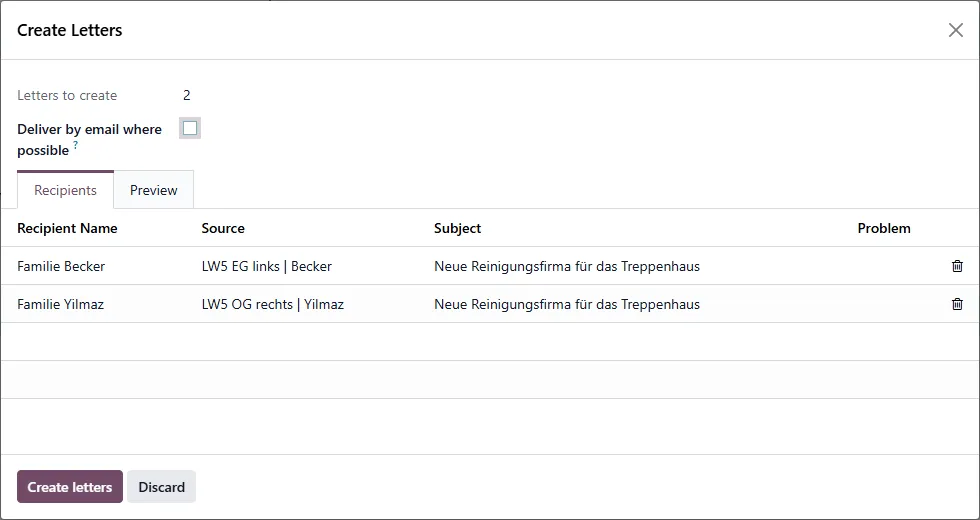
Section titled “Check and create letters”The Create Letters window opens:
- At the top, check the number under Letters to create.
- Check the list on the Recipients tab. Remove anyone who should not get a letter with the trash can. The rows cannot be edited.
- Watch the Problem column. If it says No postal address, this recipient gets no letter. Add the address on the contact and start again.
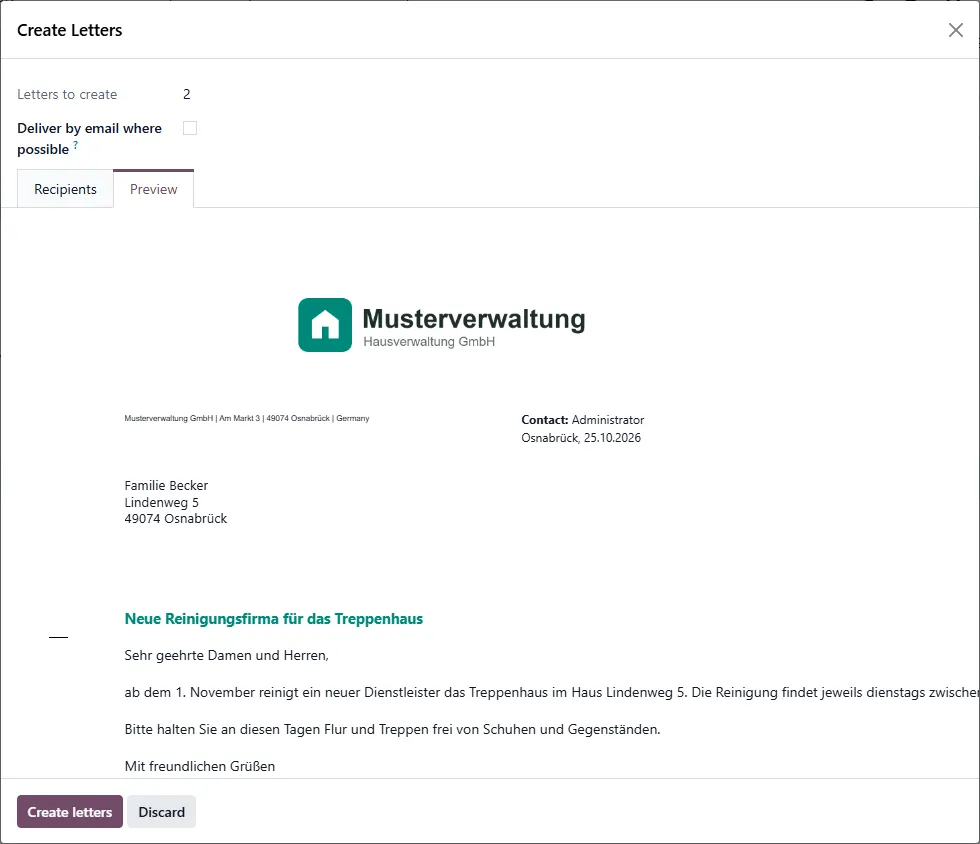
- Look at the first letter on the Preview tab.
- Decide on Deliver by email where possible. If the box is ticked, recipients with an email address get their letter as a PDF by email instead of on paper. Contacts who want to be written to by letter get a printout in any case.
- Click Create letters.
For up to three letters, SMARTBRIX creates them right away. The letters to be printed come as one PDF for download, in the order for enveloping: letter, its attachments, next letter. If all of them go out by email, a message appears instead.
For more than three letters, SMARTBRIX creates them and shows them in the list of this run. There they are Being prepared at first. In the background, SMARTBRIX creates each letter as a PDF, sends the emails and notes the letter in the history. This takes about three seconds per letter, so around five minutes for a serial letter to 100 recipients. You can keep working in the meantime. When all letters are done, a message at the top right says how many are ready to print and how many were sent by email. You then download the print stack from the letter list.
A letter delivered by email goes out with the text “Dear Sir or Madam, please find our letter of” followed by the date. If an email fails, the letter stays available for printing.
Discard closes the window without creating a letter.
Download the print stack
Section titled “Download the print stack”To download the print stack of a large serial letter or to get an earlier stack again:
- Open Letters › Letters. After a large serial letter, you are already in the list of the run.
- Select the letters you want to print, for example all of them with the box in the column header.
- Click Download print stack.
You get a PDF in the order for enveloping: letter, its attachments, next letter. It only contains letters in Ready to print. Letters sent by email and letters still being prepared are left out.
What the letter looks like
Section titled “What the letter looks like”The letter uses the letter layout of the company the tenancy belongs to. For a contact, it is the contact’s company; if none is set there, the currently active company:
- Address field: name and address of the recipient. The country is only shown for foreign addresses.
- Info block: the logged-in user as Contact with phone and email, below that the company’s town and the date.
- Date: the day you create the letter. It cannot be changed.
- Subject: in bold and in the primary color above the text.
Find letters again
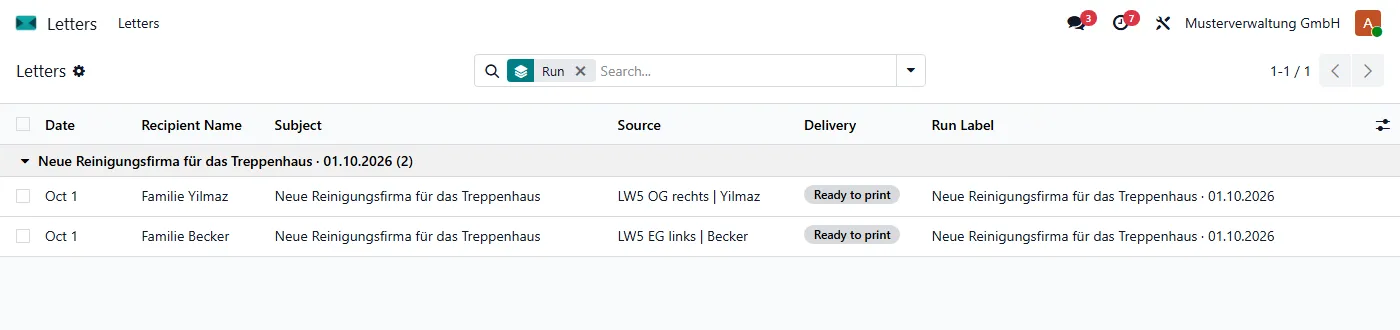
Section titled “Find letters again”All letters are under Letters › Letters, grouped by run. A run is everything you created with one click. There are filters for Ready to print, Sent by email and This year.
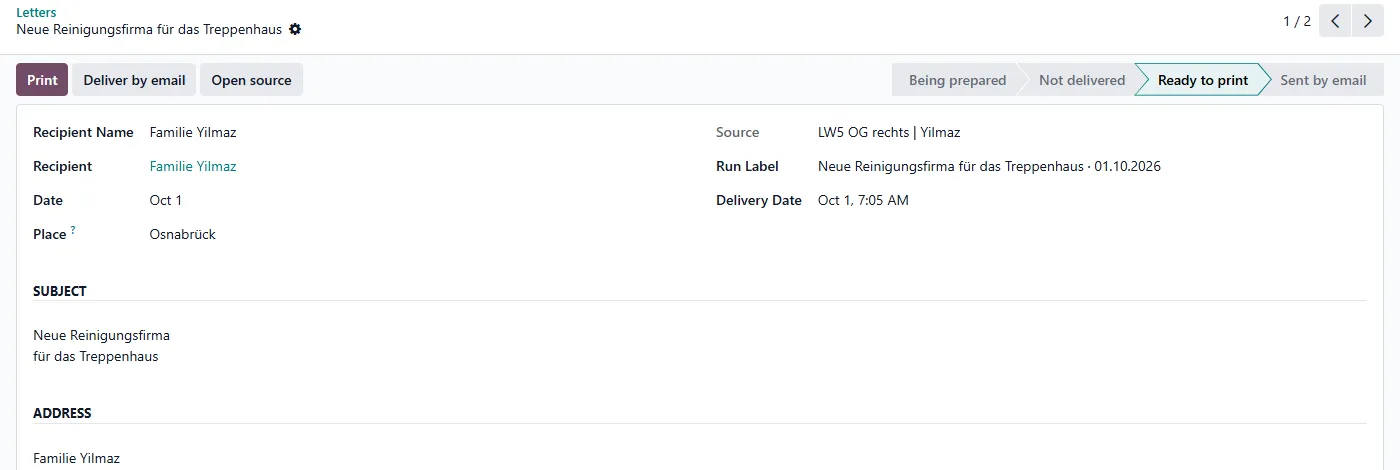
In the letter you see recipient, address, text and attachments. The status bar shows the Delivery: Being prepared, Not delivered, Ready to print or Sent by email.
- Print outputs the letter as a PDF again.
- Deliver by email sends it by email afterwards. In the list this also works for several letters at once.
- Open source takes you to the tenancy or the contact.
In addition, the history of each tenancy or contact has an internal note “Letter ready to print:” or “Letter sent by email:” with the subject and the PDF.
Frequently asked questions
Section titled “Frequently asked questions”The same tenant gets the letter only once, although I selected two tenancies. This is intended. The same text to the same recipient is created only once, for example for the apartment and the garage of the same tenant.
My template does not appear under “Load a template”. On the template’s Options tab, tick Suitable as a letter and check that it applies to the area you are writing from, for example Tenancy or Contact.
The message says that letters could not be prepared. These letters are in Not delivered. Usually the PDF could not be created, or you lack the right to add a note to the history of the tenancy. The other letters of the run are not affected. To output a single letter, click Print in the letter. If that does not work either, contact your administrator.
My letters stay in “Being prepared” for a long time. With large serial letters this is normal; expect about three seconds per letter. If nothing changes even after an hour, contact your administrator. The preparation runs through the scheduled action “Letters: prepare queued letters”.
The preview says it cannot be displayed. The letter frame could not be built. You can still create the letters. Check the company’s letter layout.
Didn't find an answer? Contact support