

Reconciliation models
Question about the manual? Ask Claude · Ask ChatGPT
A reconciliation model is a saved rule for bank matching: which transactions it applies to, and which account they are posted to. Typical cases are account maintenance fees, interest or regular debits without an invoice. The chart of accounts comes with the models “Internal Transfers” and “Bank Fees”.
Create a model
Section titled “Create a model”- Open bank matching and, on any transaction, open the ⋮ menu.
- Choose Manage Models. The Reconciliation Models list opens.
- Click New and enter a Name, for example “Account maintenance fees”.
- Define which transactions the model applies to:
- Journals: the bank accounts on which the model applies.
- Partners: only transactions of certain contacts. If empty, “All partners” applies.
- Amount: only transactions within an amount range. If empty, “Any amount” applies.
- Label: a piece of text from the payment reference, for example “Kontoführung” with the condition Contains.
- In the Counterpart Items tab, use Add a line to define where to post: Account, Amount Type, Amount and Label. For a fee in its full amount, choose the amount type “Percentage of balance” and the amount “100”.
- Save.
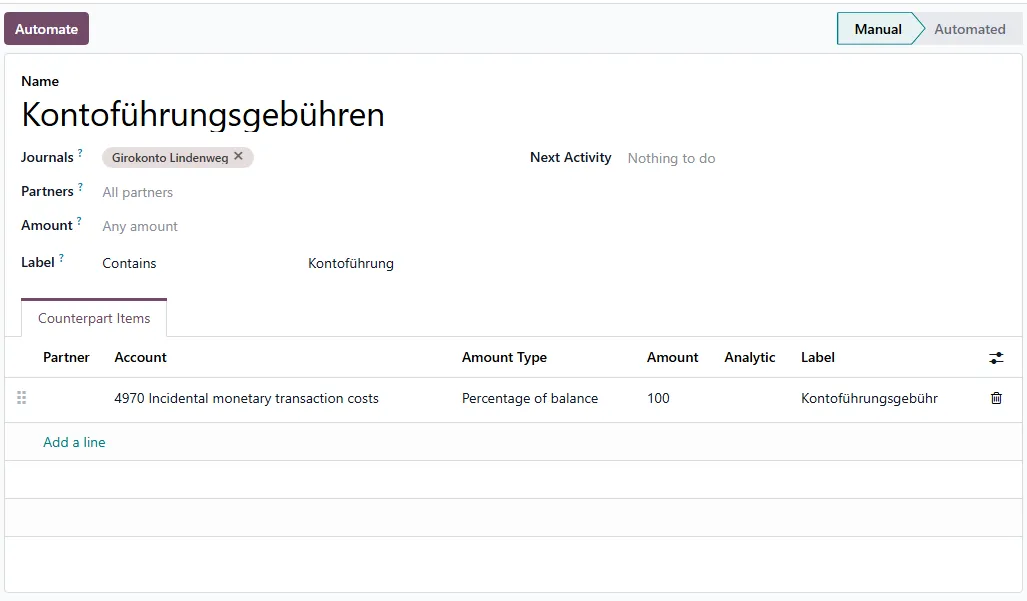
With several lines in Counterpart Items, you split a transaction, for example a debit that belongs half to each of two accounts. In the line, you can also enter Taxes and a cost distribution across properties.
Manual or automatic
Section titled “Manual or automatic”The top right of the model shows how it works:
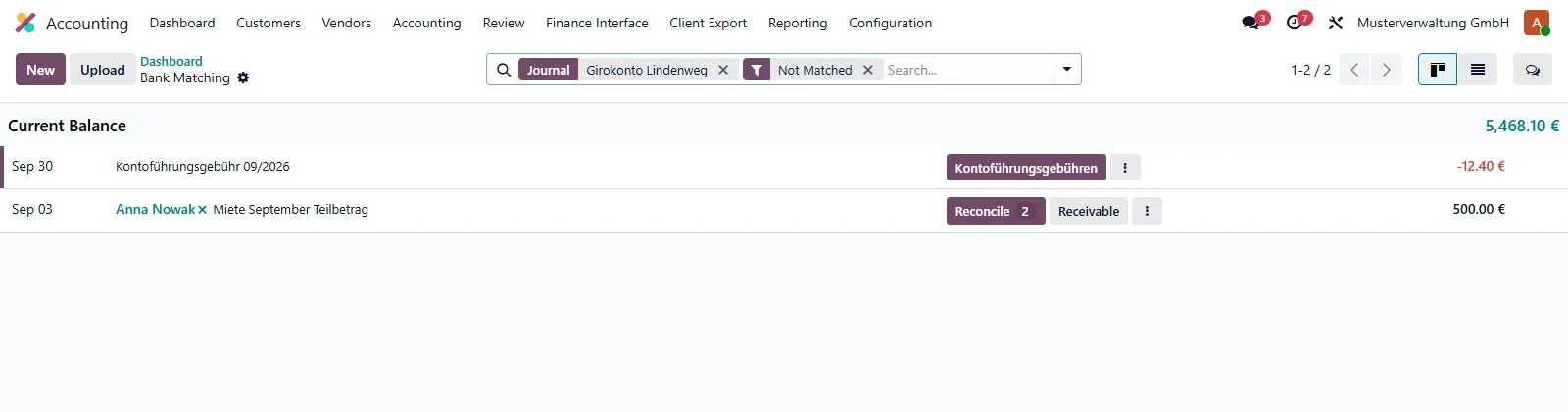
- Manual: in bank matching, a button with the name of the model appears next to each matching transaction. One click posts the transaction. This is the default and the safe way to start.
- Automated: SMARTBRIX posts matching transactions by itself. You switch with Automate and switch back with Set Manual.
Automatically created models
Section titled “Automatically created models”SMARTBRIX does not create reconciliation models by itself, even if you post similar transactions to the same account by hand several times. Such models used to be built from random parts of the payment reference, such as a bank’s BIC, and replaced the Reconcile button on the transaction. One click then posted to the wrong account.
Models that were created automatically before remain. In the Reconciliation Models list, the Created Automatically filter shows them. Check these models and archive them if the rule does not fit.
More on reconciliation models: Reconciliation models in the Odoo documentation.
Didn't find an answer? Contact support