

Open claims and dunning blocks
Question about the manual? Ask Claude · Ask ChatGPT
Open Claims shows every open item of the debtors with due date, tenancy, property and owner. The list follows the same rules as the dunning run: what is listed as Overdue here is dunned by the next run. A dunning block excludes claims from dunning.
Both menus are under Dunning › Claims, in the Business plan in the Accounting app, in the Light and Pro plans in the Invoicing app.
Analyze open claims
Section titled “Analyze open claims”- Open Dunning › Claims › Open Claims.
- Filter or group via the search field, for example by Owner, Main Property or Debtor.
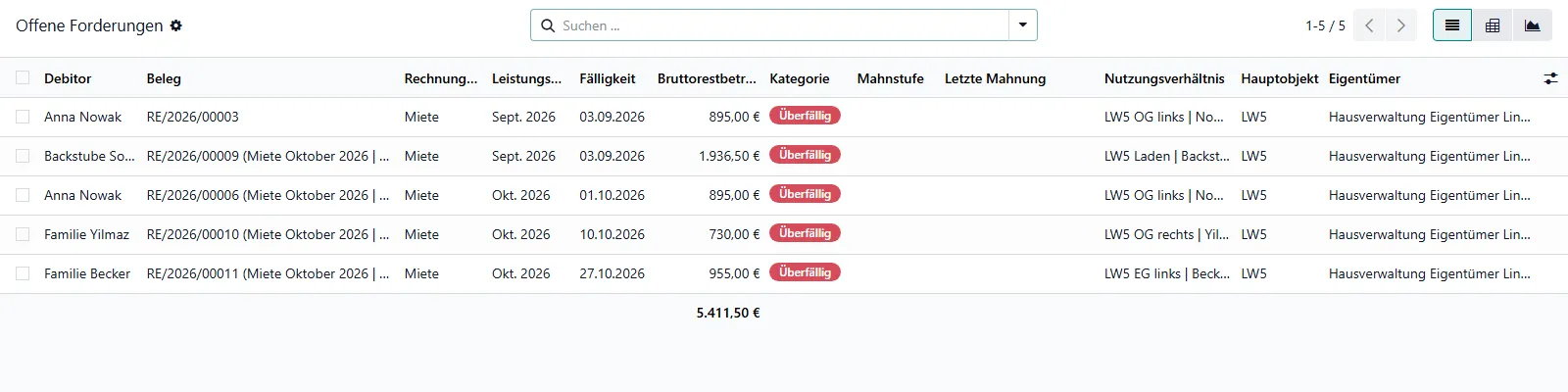
Each row has a Category:
- Overdue: the due date has passed. The dunning run takes the item into account.
- Excluded: the item has a dunning block, directly or via debtor or tenancy.
- Not Yet Due: open, but not yet due.
- Credit: an open amount in favor of the debtor, such as an overpayment.
Other columns:
- Invoice Type: Rent, Deposit, Service Charge Statement or Other.
- Service Month: for rent invoices the month of the rent, otherwise the invoice date.
- Gross Open Amount: the amount still open. The total is shown below the list.
- Last Dunning: date of the last executed notice with this item.
- The icon on the right of the list header shows more columns: Follow-up Level, Block Reason, Days Overdue, Overdue Since, Property, Claim Type and Arrears over One Monthly Rent.
The filters Dunning Fees, No Owner or Property and Arrears over One Monthly Rent find typical cases to check. An item without an owner is usually a balance carried forward or an entry without a property.
In the top right corner you switch to the pivot view (main property, property, tenancy and debtor against Overdue Since) and to the graph.
Dunning blocks
Section titled “Dunning blocks”A dunning block excludes claims from the dunning run, for example for an instalment plan or a disputed claim. Blocked items stay in the account statement and in the balance of the debtor.
Set a block
Section titled “Set a block”From a draft:
- Open the dunning notice in draft.
- Click Block at the top, or Block in its row for a single item.
- Under Block, choose what is blocked: Debtor, Tenancy or Item.
- Choose the Reason: Instalment Plan, Disputed, Lawyer / Debt Collection, Insolvency or Other.
- Enter Expires On and a Note if needed and click Block.
From the next dunning run on, the blocked claims are missing from the notice. You can also create a block for a debtor or a tenancy directly under Dunning › Claims › Dunning Blocks with New. Without a tenancy, it applies to the whole debtor.
Manage blocks
Section titled “Manage blocks”Dunning › Claims › Dunning Blocks lists all blocks on debtors or tenancies with reason and expiry date. From the Expires On date, a block no longer applies. SMARTBRIX lifts expired blocks once a day and archives them. A block without an expiry date applies until you archive it.
Blocks on single items are not in this list. You recognize them in Open Claims by the category Excluded and the Block Reason. The history of the invoice shows every change.
Balance on the contact
Section titled “Balance on the contact”In the Business plan, the contact shows the fields Open Balance and Overdue Amount on the Accounting tab. Both are calculated like the open claims, including blocked items.
What is not included
Section titled “What is not included”- The list is read-only. You change items on the invoice or in bank reconciliation.
- The list calculates “due” with the server date, the dunning run with your cut-off date. Shortly after midnight they can differ by one day.
Didn't find an answer? Contact support