

This page shows the customer portal as a tenant sees it after logging in. If you know the pages, you answer questions on the phone faster. The same bar is always at the top: Start, My tenancies, Meters, Invoices and Help. If consumption information is switched on for the tenant’s building, Consumption also appears between Invoices and Help. If a tenant has several tenancies, they switch between them with Your properties. If they have a search profile or saved properties, the bar also shows My searches and Saved (see Search profiles).
The start page sums up everything important.
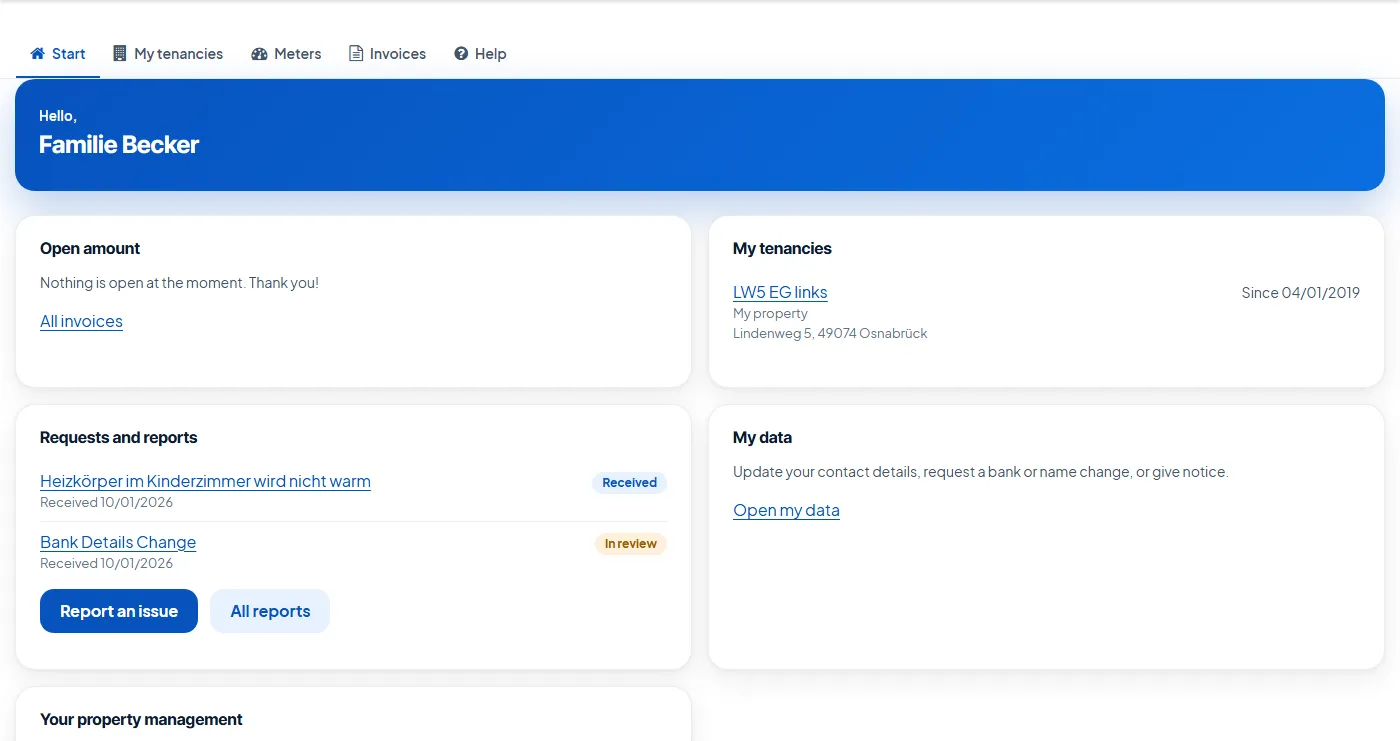
- Open amount: what is still to be paid, with a link to all invoices.
- My tenancies: property, address and start.
- Requests and reports: the six most recent requests and issue reports with their status, plus Report an issue and All reports.
- My data: leads to contact details, change of bank details or name, and termination.
- Your property management: contact person with phone and email.
Tenancy
Section titled “Tenancy”Clicking the tenancy opens its page.
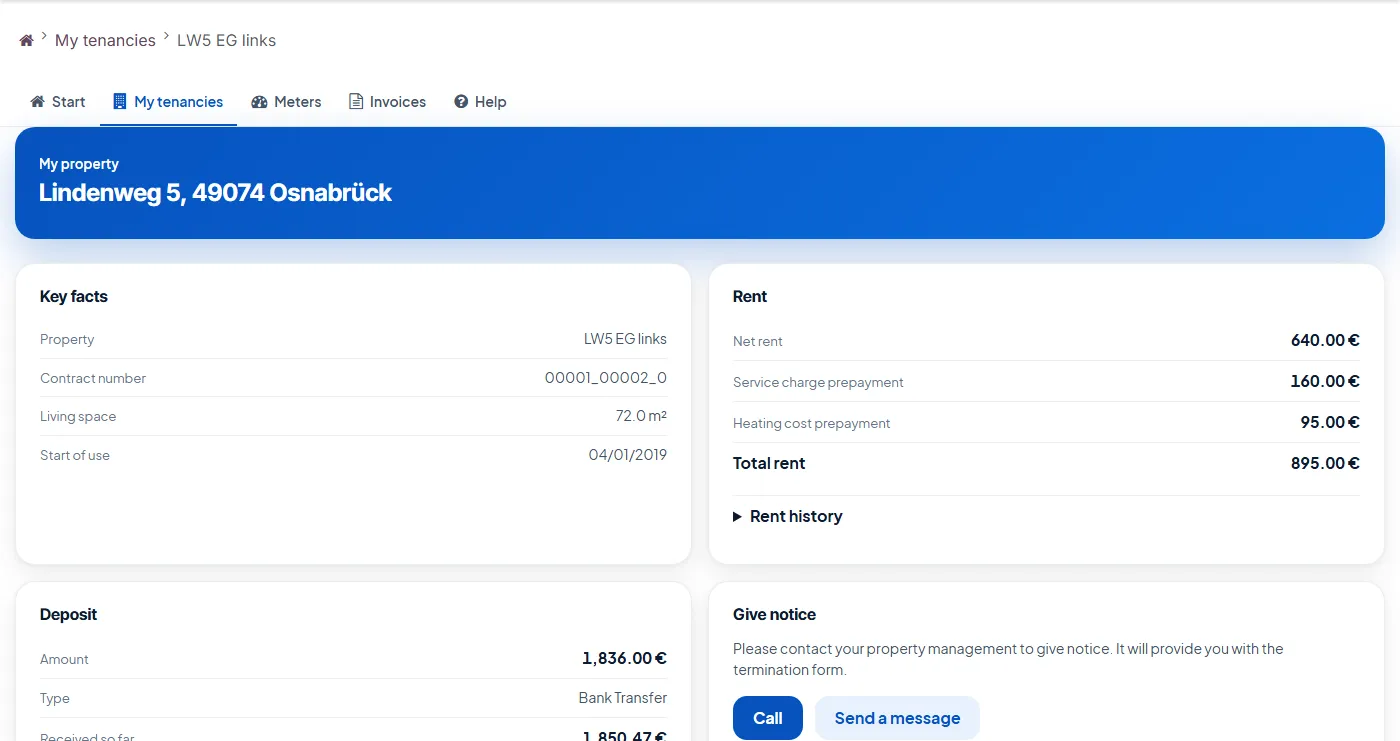
- Key facts: property, contract number, living space, start and end.
- Rent: Net rent, the prepayments, for example Service charge prepayment and Heating cost prepayment, and Total rent. Rent history lists earlier rents.
- Deposit: amount, type and what has been received so far.
- Documents: agreement, protocols, photos, landlord certificate, statements and circulars, sorted by type. Below them the house documents of the property.
- Give notice: leads to the termination. You define in the settings how the tenant can give notice. If only the postal route is allowed and no termination form is uploaded, the card only asks the tenant to contact the management and offers Call and Send a message.
Before the move-in, the page also shows Before you move in with the move-in date, the status of the agreement, the handover appointment and your note for future tenants. There the tenant also downloads the SEPA mandate as a form. If a third-party rent payer is set on the tenancy, the form names that payer as the account holder, not the tenant.
Invoices
Section titled “Invoices”Invoices lists all posted invoices of the tenant, filterable by rent, service charges, deposit and other. The service charge statement appears here as a complete document.
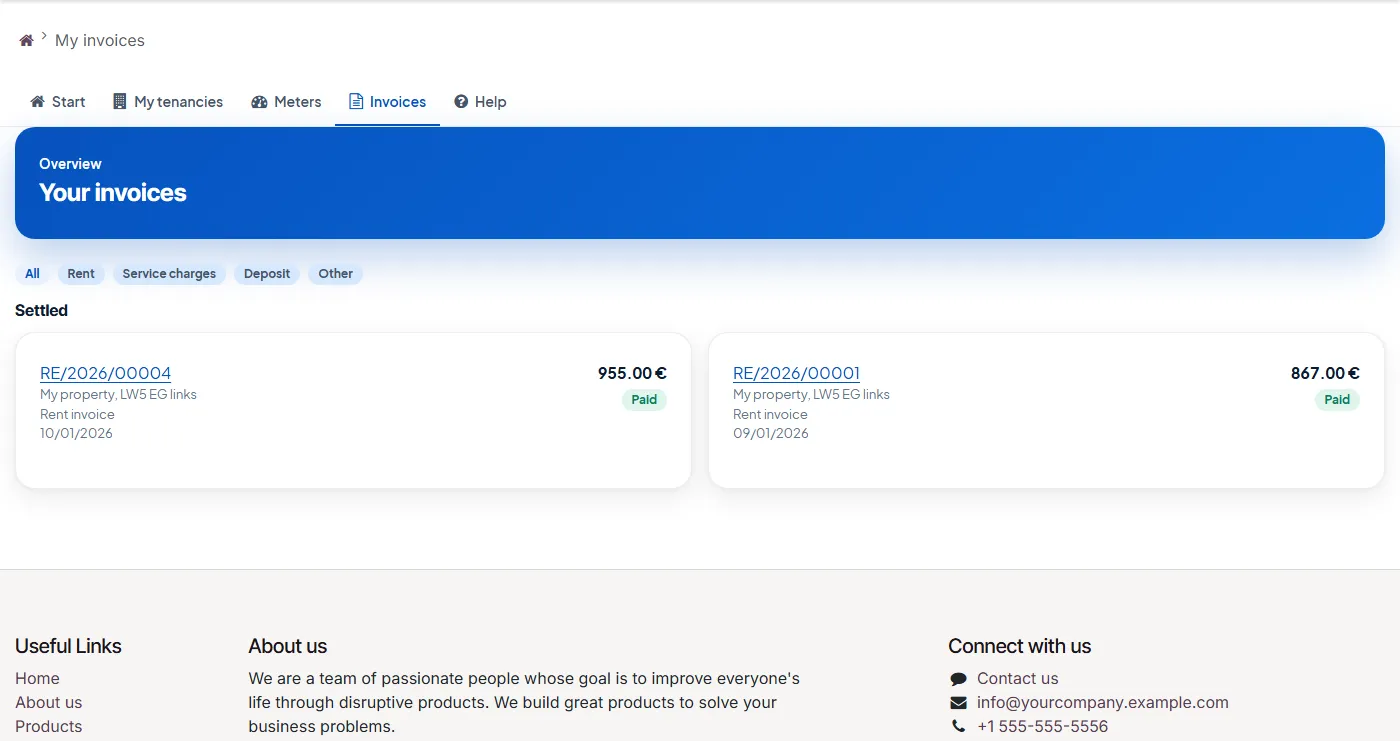
An open invoice shows the IBAN, the payment reference and a QR code for the banking app under Pay by bank transfer. With direct debit, a note about the collection appears there instead. There is no online payment in the portal.
My data
Section titled “My data”Under My data, the tenant changes phone, mobile number and email address directly; the change applies immediately. New bank details and a change of name are submitted as a request, which you review.
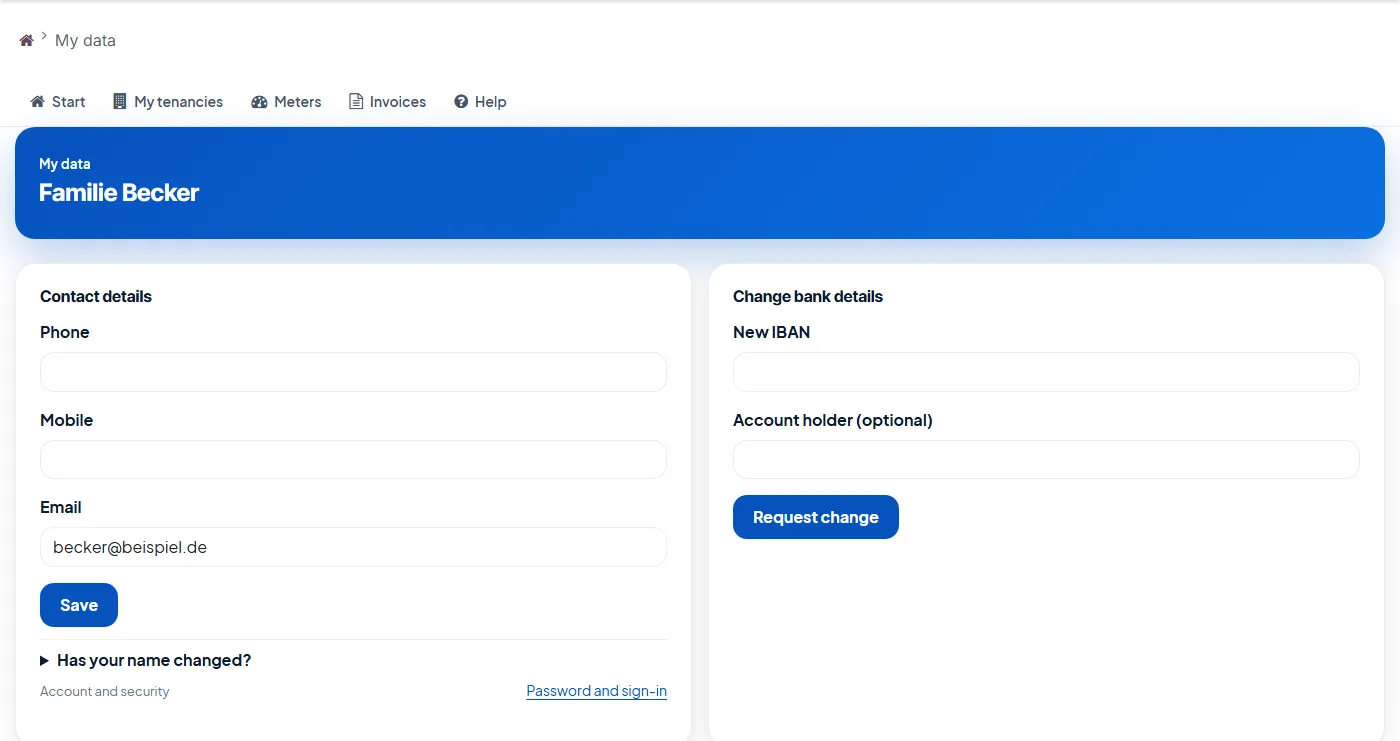
After submitting, the tenant sees their request under Your request with the status Submitted, In review and Decision. As long as you have not decided, they can take it back with Withdraw the request and write you messages.
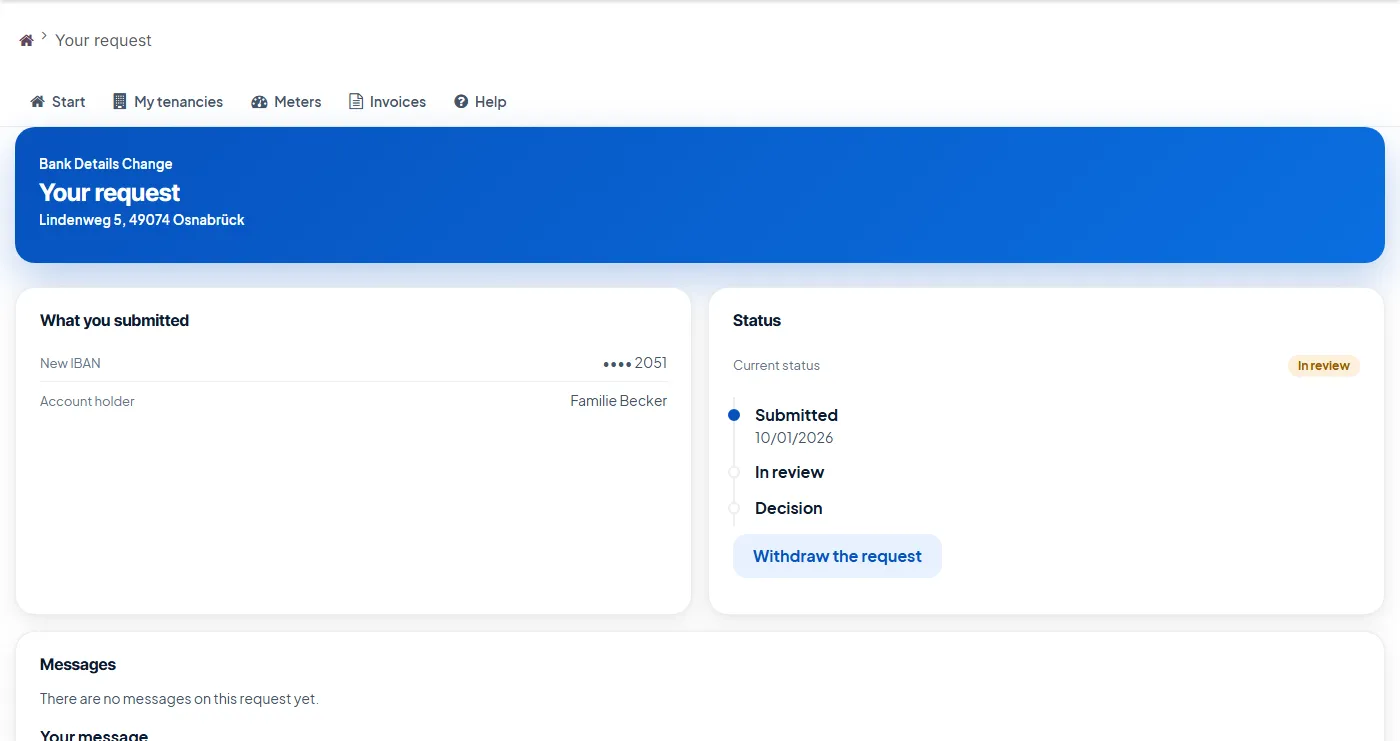
How you handle requests is described in Handle requests and issue reports.
Report an issue
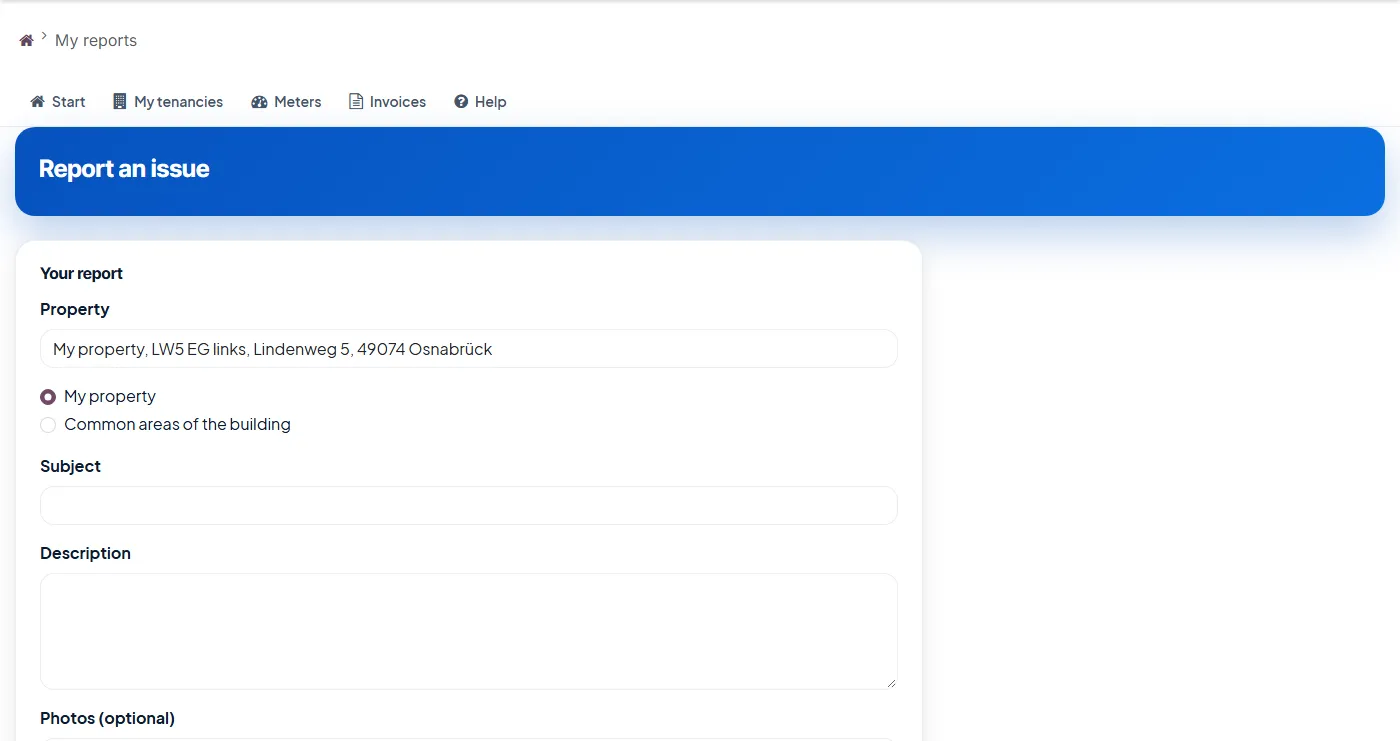
Section titled “Report an issue”With Report an issue, the tenant reports a defect or another concern. They choose whether it concerns their property or the common areas of the building, enter a subject and a description and attach photos if needed.
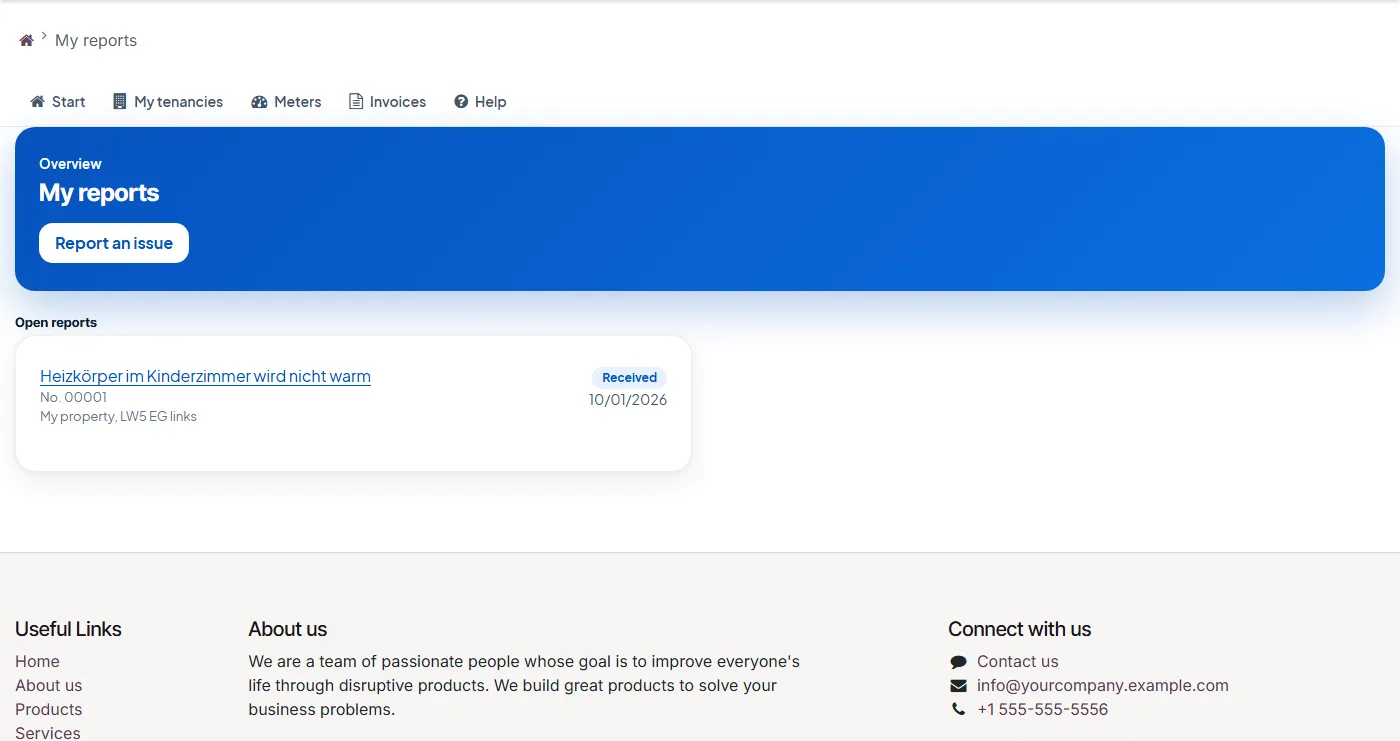
Under My reports, they follow the status of each issue report: received, in progress, done. They can also reply there.
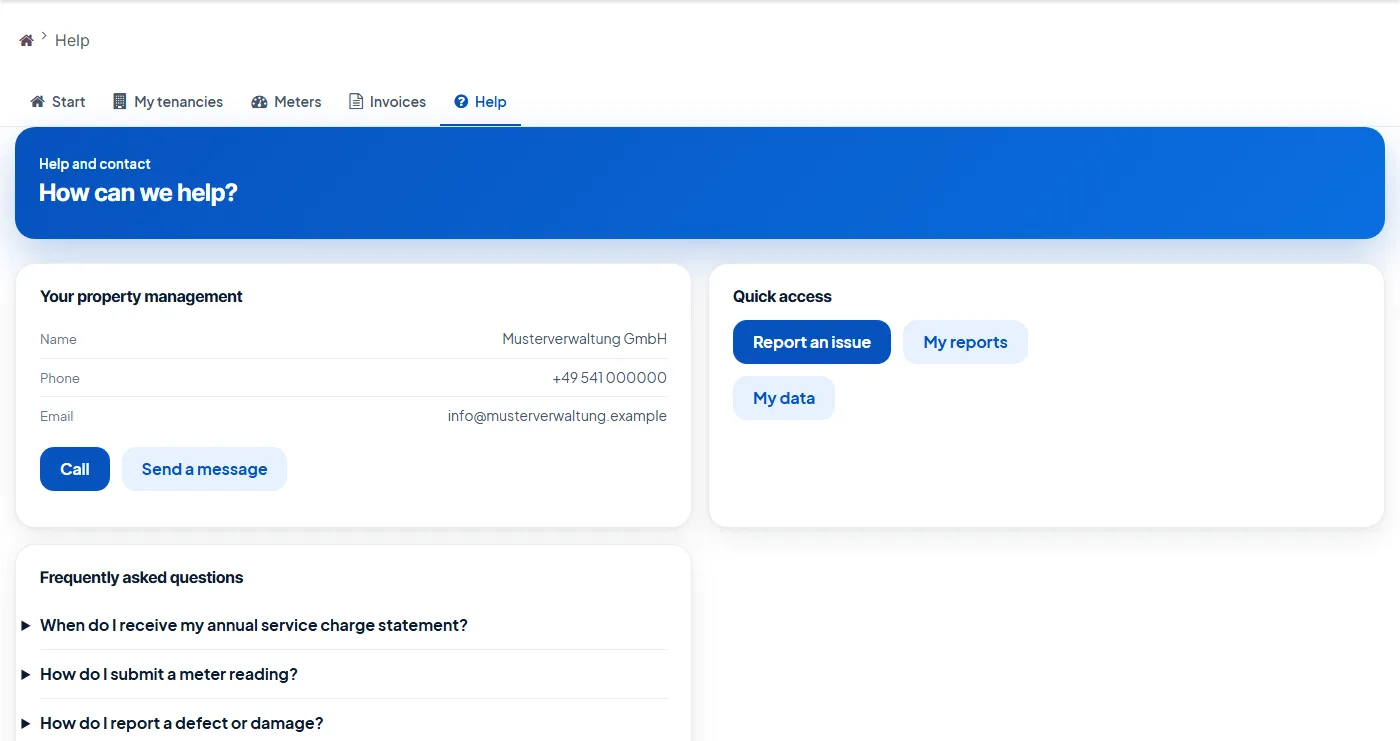
Help shows the contact details of your management, quick links and the frequently asked questions from Portal › Help Entries.
Meters
Section titled “Meters”Under Meters, the tenant reports meter readings, with a photo if they want. The process is described on the Meters and readings page.
Consumption
Section titled “Consumption”Under Consumption, the tenant sees their monthly heating and hot water consumption compared with the previous month and the same month last year, the last 13 months and each month as a PDF. The page only exists if you have switched on consumption information for the tenant’s building. Setup and content are described on the Consumption information page.
Didn't find an answer? Contact support