

Property allocation keys
Question about the manual? Ask Claude · Ask ChatGPT
Normally SMARTBRIX allocates by the values of the rent line: area, heated area, persons or co-ownership share. Some costs follow a different split, however, such as garden maintenance by garden shares, the elevator only among the apartments of one building part, or the waste fee by the containers an apartment has. For these, you create a property allocation key. It is attached to the unit, so there is nothing to do when the tenant changes.
Create a property allocation key
Section titled “Create a property allocation key”- Open Property Administration › Configuration › Cost Allocation › Property Allocation Keys and click New.
- Enter a name, for example “Gartenanteil” (garden share). This name later appears on the statement in the Allocation Formula column.
- Choose the Settlement Property, that is, the building.
- Under Cost Types, choose the cost types that are split by this key. Only cost types with the allocation key “Property Allocation Key” are offered.
- If needed, enter a Unit of Measure, for example “m²”. It appears after the quantities in the report of the overall statement.
- If needed, enter under Target total what the values must add up to according to the documents, for example “100” m² of garden according to the site plan. Leaving it empty means: not checked.
- Create one line per apartment or commercial unit: the Unit (the property), Valid from and the Value.
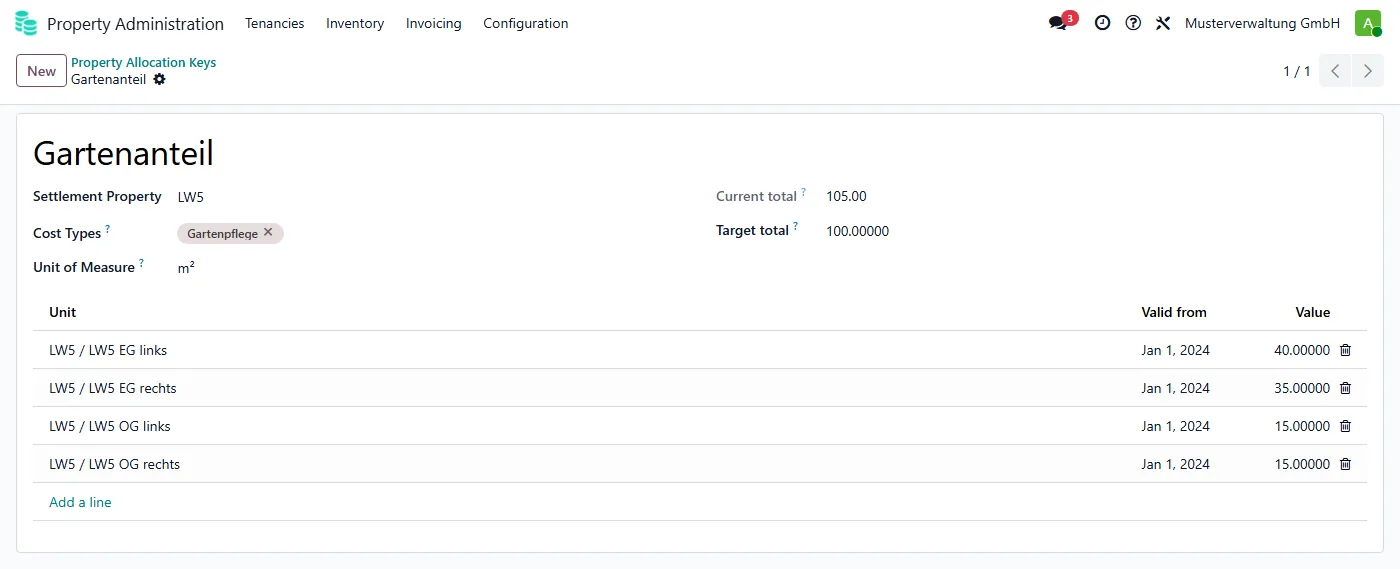
Current total shows the sum of the values that apply today. If the total in the settlement period differs from the target total, the allocation check reports it as Target total missed. In the example, EG rechts has 35 instead of 30. The target total changes no allocation and locks nothing. The quantity check printout shows which values each usage carries in the period. If a value changes, create a new line with a later Valid from date. The old value applies until the day before. You can also edit all values of all keys in one list under Property Administration › Configuration › Cost Allocation › Property Allocation Key Values.
Set up the cost type
Section titled “Set up the cost type”- Open the cost type under Property Administration › Configuration › Cost Allocation › Cost Types.
- Choose “Property Allocation Key” as the Allocation Formula.
- List the cost type in the property allocation key of every building that uses it (see above). The cost type form then shows under Property Allocation Keys which keys split it.
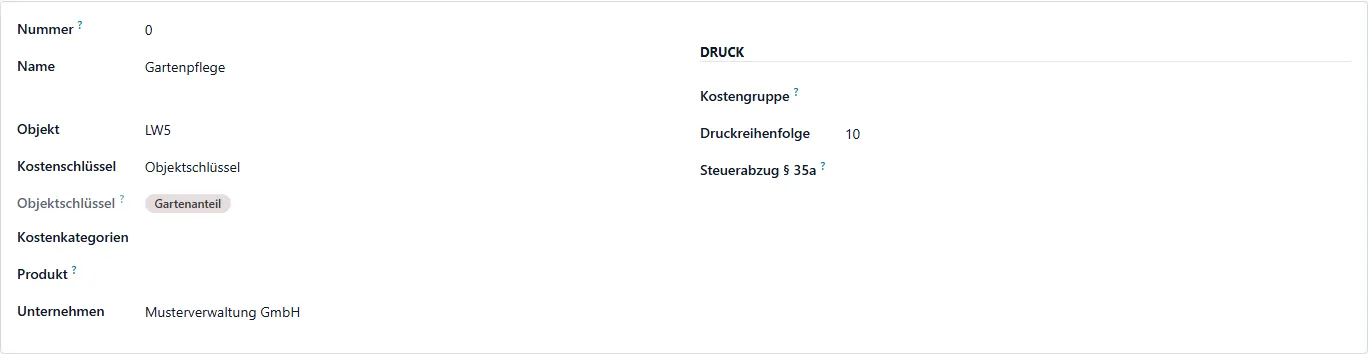
A cost type used by several buildings, for example “Müll eigene Tonne” (own waste bin), has its own property allocation key in each building. Per building, a cost type may appear in only one property allocation key. If it has no key in a building, SMARTBRIX does not allocate its expenditures there; the allocation check then lists them among the expenditures not allocated.
Example: waste fee per container
Section titled “Example: waste fee per container”The city’s fee notice states a tariff of its own for each waste container, for example €636.95 for an 80 liter container, €227.05 for a 50 liter container and €424.58 for a 120 liter container. The tariffs do not rise in proportion to the size, so liters as values would split wrongly.
- Create a property allocation key “Abfallgefäße” (waste containers) with the unit of measure “€”.
- For each apartment with a container of its own, enter its fee as the Value, with Valid from January 1 of the year. Apartments without a container of their own get no line.
- List the cost type of the waste fee in the key.
Each apartment then bears exactly the fee of its container; when the tenant changes, the old and the new tenant share it by days. If next year’s notice brings new tariffs, create a new line for each apartment with Valid from January 1 of the new year. The statement of the previous year keeps calculating with the old tariffs, even if you create it later.
How the allocation works
Section titled “How the allocation works”- Each usage bears the value of its unit, weighted by days.
- If the tenant changes during the year, the old and the new tenant share the value by days.
- A unit that does not appear in the property allocation key at all does not take part and bears nothing. This is intended, for example for apartments without a container of their own.
- If a unit has values, but not for every day, it bears nothing on the days without a value, and the other units bear its share. The allocation check reports this as “Property allocation key without value”, the overall statement in draft in the yellow banner. If a unit should no longer take part from a certain day, enter the value 0 from then on.
- Values on buildings or building parts have no effect, only values on the units that carry usages.
- If the cost type belongs to the heating costs, Change of Tenant By degree days applies here too, if you have set it.
The values are frozen with Create Service Charge Statement after the allocation check in the overall statement. If you change a value afterwards, reset the overall statement to draft.
Special cases
Section titled “Special cases”- Settled cost type: Once a cost type appears in a released overall statement or a posted service charge statement, you can no longer move it to a different property allocation key. Create a new version instead; it is added automatically to the same property allocation keys as the old one.
- Condominium management: Communities have object keys as well. There they belong to the building of the community and are chosen in the allocation key of the condominium cost type (see Object keys). The Cost Types field only concerns rental management.
- Delete a key: A property allocation key that still splits cost types cannot be deleted. Remove the cost types from the key first.
- Former direct assignment by property: During the update to this version, each direct assignment becomes a property allocation key with Valid from 01/01/1900, the same values and the same cost types. The menu item Configuration › Cost Allocation › Direct Assignment is removed. For individual amounts per usage on an expenditure, the direct assignment remains available. A cost type with direct assignment but no template, for example because the shares were only entered on the expenditures, gets no key. Its expenditures then stay unallocated. The update notes this in the history of the building, and the allocation check reports it. Create the key by hand.
Didn't find an answer? Contact support