

Appointments at the property
Question about the manual? Ask Claude · Ask ChatGPT
Every calendar appointment can be linked to a property, also one you create directly in the calendar, for example for a craftsman or an appraiser. The property then lists all its appointments, upcoming and past. If an attendee from outside your company has not confirmed yet, the appointment is provisional and marked as such in the calendar.
Create an appointment with a property
Section titled “Create an appointment with a property”- Open the calendar and click a free time slot.
- Enter the title and select the property under Property.
- Select the attendees and save.
SMARTBRIX enters the property’s address as Location and removes a video link. If the property has no address, its name becomes the location. If you change the property, SMARTBRIX replaces a location the previous property filled in. A location you entered yourself stays.
An appointment from an opportunity with a property, and an appointment you schedule from the property, get the property automatically. Viewings carry it as well.
See the appointments of a property
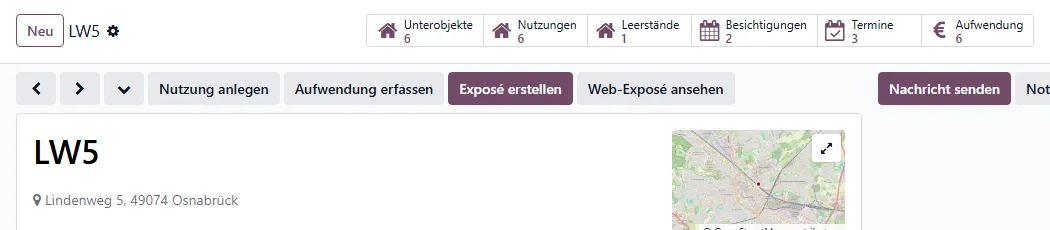
Section titled “See the appointments of a property”In the property, click Appointments at the top. The button shows the number of upcoming appointments. The list opens with the Upcoming filter. The Past filter shows earlier appointments, for example when the appraiser was on site.
Provisional appointments
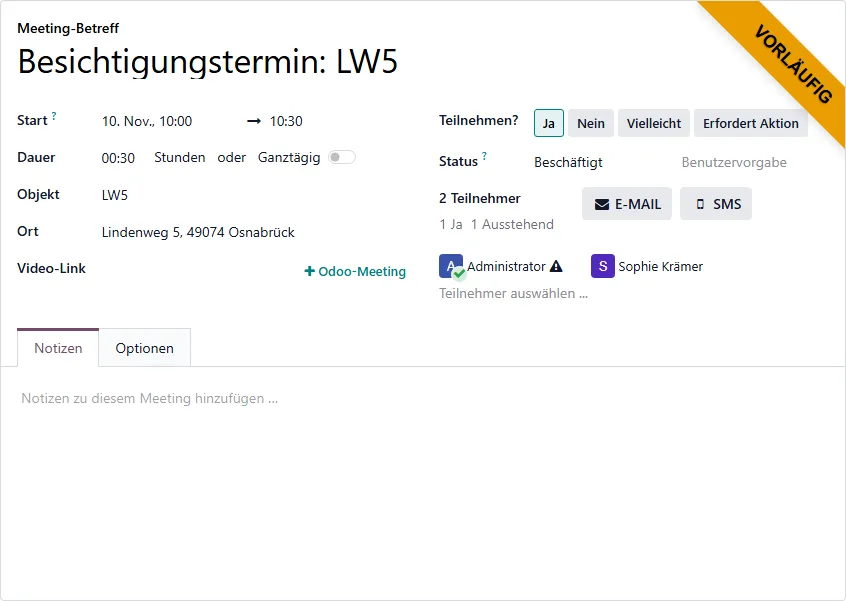
Section titled “Provisional appointments”An appointment is provisional as long as it has a property and at least one attendee from outside your company has neither accepted nor declined. Colleagues do not count.
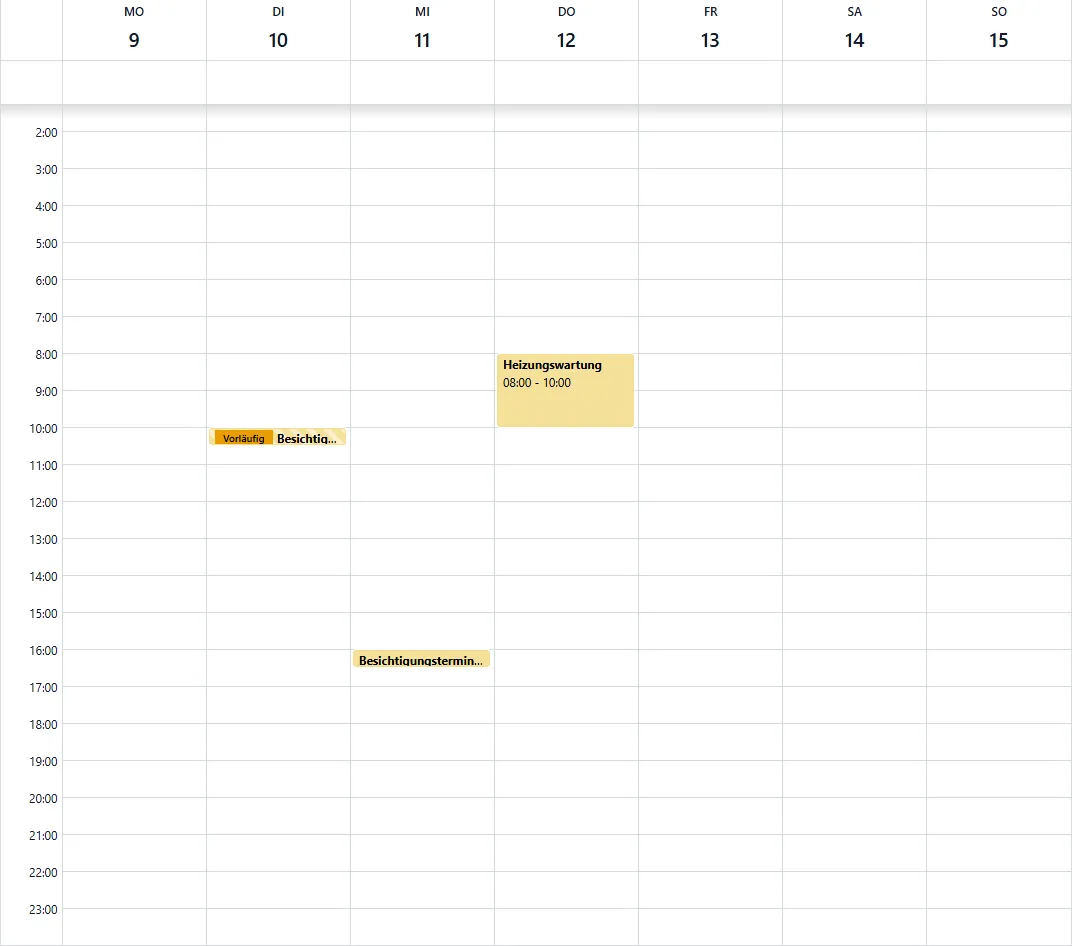
- In the calendar, a provisional appointment is striped and carries the Provisional label, whatever you answered yourself.
- In the appointment, the Provisional ribbon shows at the top.
- The Provisional filter finds all open appointments. Together with Past, it shows provisional appointments that are already over and can be cleared up.
Confirm an appointment
Section titled “Confirm an appointment”If an attendee accepts by phone, by email or in person, record it on the appointment:
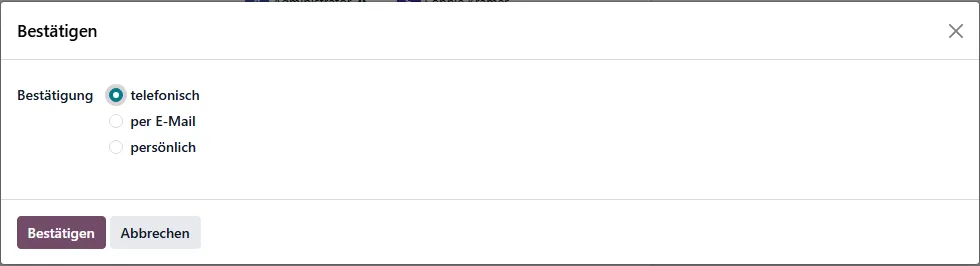
- Open the provisional appointment and click Confirm at the top.
- In the dialog, choose under Confirmation how the attendee accepted: by phone, by email or in person.
- Click Confirm.
SMARTBRIX sets all open attendees from outside your company to accepted, writes a note in the appointment’s chatter and shows the appointment as normal again. Confirmation then shows the channel you chose. If you picked the wrong one, change it there.
If a viewing is behind the appointment, Confirm also confirms the viewing invitation. The prospect then receives the email “Your viewing appointment”. See Viewing.
Follow up
Section titled “Follow up”If an attendee has not answered after a few days, the person responsible for the appointment gets an activity: Follow up on viewing if a viewing is behind it, otherwise Follow up on appointment. The activity is placed on the viewing, otherwise on the opportunity, otherwise on the property. The days count from the latest invitation. If you invite someone later, a new activity follows after the same period.
Settings
Section titled “Settings”The settings apply per company. The property’s company decides, not the company you are currently working in. You find them under Settings › Properties in the Viewings block:
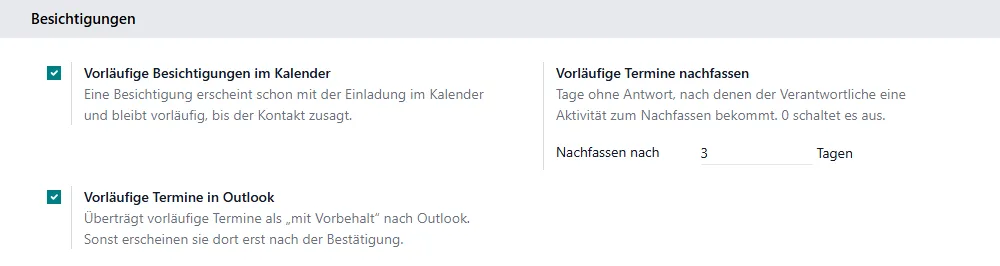
- Provisional viewings in the calendar: A viewing appears in the calendar as soon as the invitation is sent, as a provisional appointment. If the setting is off, it appears with the first confirmation. Default: on.
- Follow up on provisional appointments: After how many days without an answer the activity is created. Default: 3 days. 0 turns the follow-up off.
How provisional appointments appear in Outlook is described under Outlook calendar.
What is not included
Section titled “What is not included”- SMARTBRIX does not delete unconfirmed appointments, not even once they are over. Clear them up yourself with the Provisional and Past filters.
- Nothing changes on the contact. There, the Meetings button still shows all appointments of the contact.
Didn't find an answer? Contact support