

Outlook calendar
Question about the manual? Ask Claude · Ask ChatGPT
If your calendar is connected to Outlook, your SMARTBRIX appointments also appear in Outlook. This add-on decides how a provisional appointment appears there: as a tentative appointment or only once it is confirmed.
Prerequisites
Section titled “Prerequisites”- The Outlook connection of the calendar is set up, and you have connected your calendar to Outlook.
- The add-on is active. On new databases with the Outlook connection it comes along automatically. In an existing database, SMARTBRIX installs it once by hand.
Set up
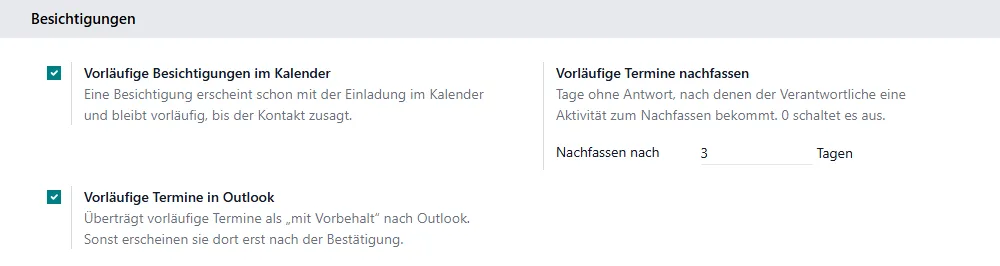
Section titled “Set up”Open Settings › Properties and the Viewings block. The setting applies per company; the property’s company decides.
- Provisional appointments in Outlook: If the setting is on, a provisional appointment shows in Outlook as tentative. The time slot is taken but recognizable as uncertain. If it is off, a provisional appointment appears in Outlook only after confirmation. Default: on.
What happens automatically
Section titled “What happens automatically”- Once an appointment is confirmed, Outlook shows it as busy again. If the appointment’s Show as is set to Available, it stays free.
- An appointment with a property always has a location, the property’s address or name. Outlook therefore does not add a Teams link.
- An appointment you confirmed in SMARTBRIX stays confirmed, even though Outlook does not know the attendee’s answer.
- If a prospect answers the invitation in Outlook, the acceptance or refusal reaches the viewing.
Special cases
Section titled “Special cases”Invitations from Outlook: Invited attendees are part of the appointment. Outlook therefore sends them a meeting request of its own, in addition to the invitation email from SMARTBRIX.
Setting off, appointment already in Outlook: An appointment that is already in Outlook stays there, even if it becomes provisional again.
What is not included
Section titled “What is not included”- The property itself does not appear in Outlook, only the location.
Didn't find an answer? Contact support