

Import and export
Question about the manual? Ask Claude · Ask ChatGPT
You can export every list in SMARTBRIX, and you can import records from a file into almost every list. This is how you take over contacts or properties from a previous system, analyze data in Excel or change many records at once. The function works the same in all areas. It follows the standard Odoo function, which the Odoo documentation on import and export describes in detail.
Export data
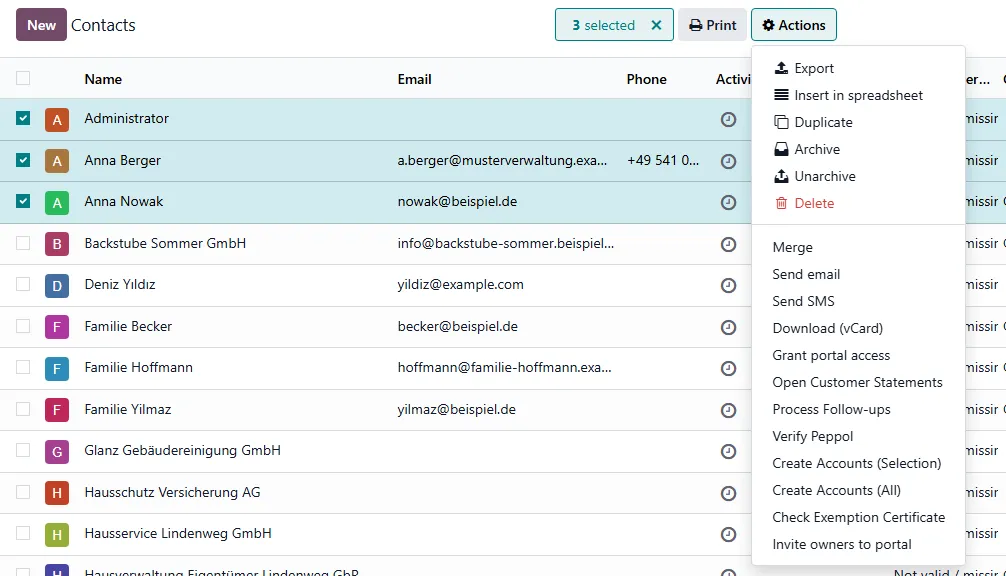
Section titled “Export data”- Open the list, for example Contacts, and switch to the list view.
- Select the records with the checkboxes on the left. The checkbox in the header selects all records on the page. SMARTBRIX then offers to select all records of the search.
- Click Actions and then Export.
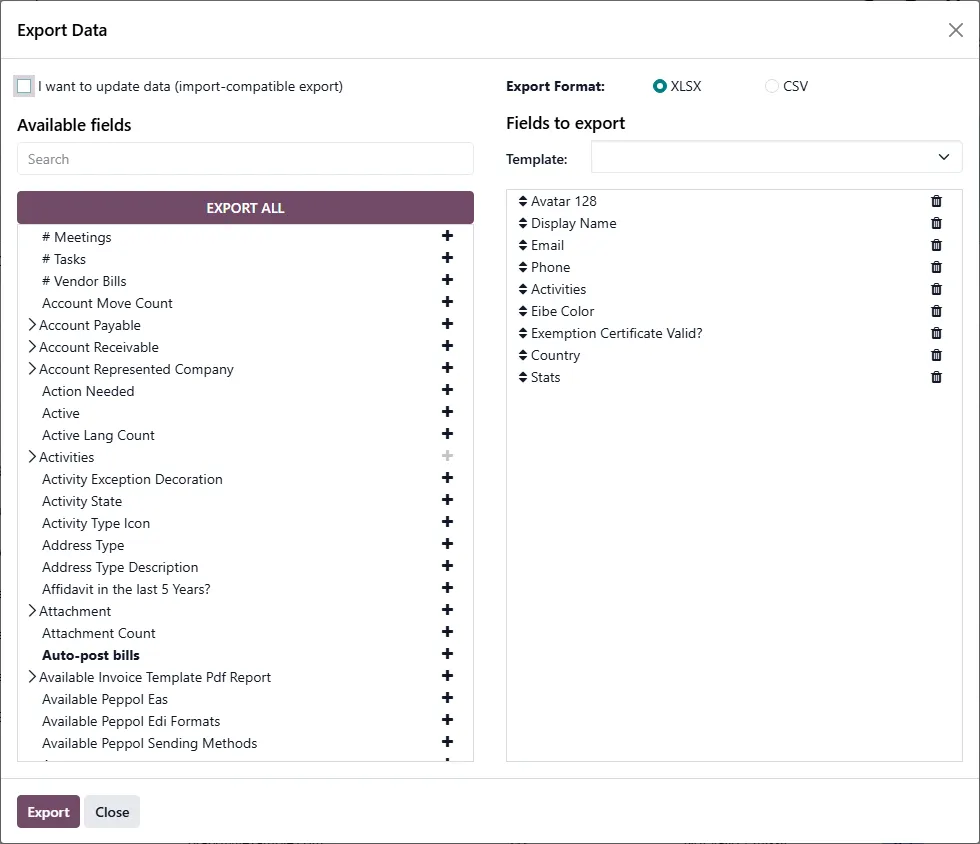
In the Export Data window:
- Choose the Export Format: XLSX for Excel or CSV.
- Under Fields to export, put together what the file should contain. On the left, under Available fields, search for a field and add it with the plus sign. The arrow in front of a field opens linked data, such as the fields of the property for a tenancy.
- EXPORT ALL adds all available fields at once.
- Arrange the columns on the right by dragging, and remove unneeded ones with the trash can.
- Click Export. The file is downloaded.
Export data for a later import
Section titled “Export data for a later import”If you want to change records in Excel and read them back in, check I want to update data (import-compatible export) in the export window. The file then contains the identifier of each record in the first column. On import, SMARTBRIX uses it to recognize which record to change instead of creating a new one. Leave this column unchanged.
Import data
Section titled “Import data”- Open the list you want to import into, for example Contacts.
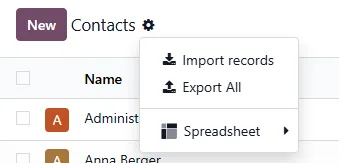
- Click the gear icon next to the list name and then Import records.
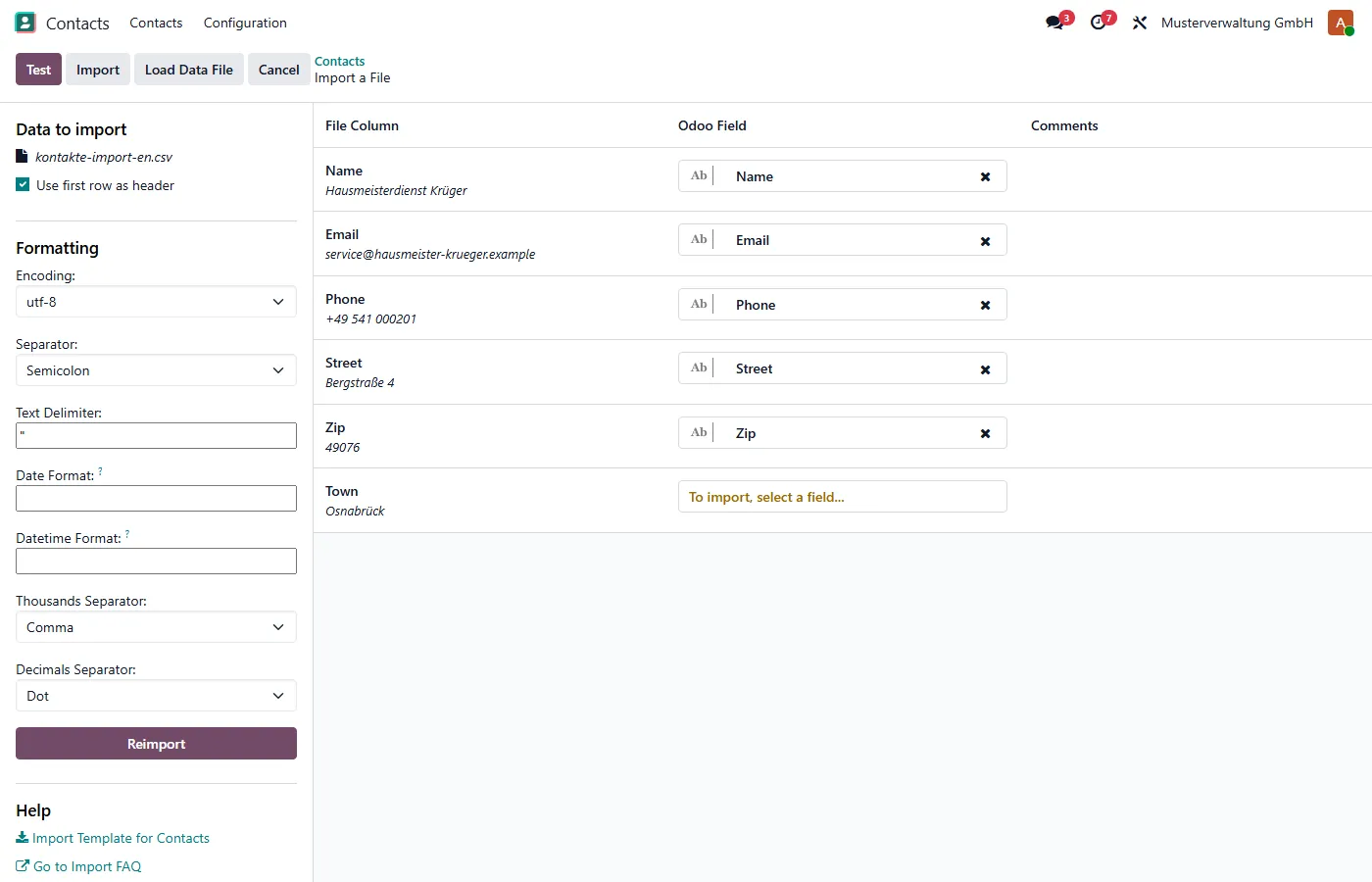
- Use Upload Data File to upload a file in XLSX or CSV format. A matching sample file is on the left under Help, for example Import Template for Contacts.
- On the left under Formatting, check the file settings. For CSV files from a German Excel, set Separator to Semicolon and Decimals Separator to Comma.
- On the right, check the mapping: each File Column shows the field its value goes into. If SMARTBRIX does not recognize a column, it shows To import, select a field…. Choose the matching field by hand, or leave it empty so the column is not imported.
- Click Test. SMARTBRIX checks the file without creating anything and shows errors per row.
- If the test shows no errors, click Import.
How import differs from the interface
Section titled “How import differs from the interface”On import, SMARTBRIX creates the records directly. Some checks and automatic steps that apply when you enter data in the interface deliberately do not run:
- Usages: The phase of the tenancy is not derived. Check it after the import.
- Rent lines: The check of the areas against the property is skipped.
- Index-linked rent: The index-linked rent figures are not recalculated.
- Sub-usages: Cost types are not taken over from the property. If they are missing from the file, the usage is not included in the service charge statement.
- Meter readings: Completed meter readings cannot be changed by import either.
Contacts, properties and cost types are well suited for import. Create tenancies with rent lines in the interface, or check each one after the import. When you switch to SMARTBRIX, your project manager takes over your portfolio with a template of its own, see Data migration.
Frequently asked questions
Section titled “Frequently asked questions”The “Export” entry is missing. Export is a separate access right. An administrator grants it on the user under Export.
The import creates duplicate records. The file had no identifier column. Export the records with I want to update data (import-compatible export), change this file and import it again.
Umlauts and other special characters look wrong. Under Formatting, change the Encoding, usually to “windows-1252” for files from older Excel versions.
Didn't find an answer? Contact support